Before you start
- The machine itself, if you can get to it. A serial read off the label beats a serial typed from an email.
- Nothing else. The form asks for very little on purpose, and you can finish the record later.
Add an asset
The four ways in, typing one in, and what you can do while you're still standing at the machine.
Transcript
- There are four ways to add an asset on the iPhone: scan its tag, photograph the serial, type it in, or find it on the network.
- On Assets, tap Add an asset. Scanning and photographing need a real iPhone camera, so here we type one in.
- The tag leads, and you need at least a serial, a make or a model. The chips offer the makes and models this register already knows.
- Pick the type from the menu, and the custom fields for that kind of machine appear.
- Tap Save asset. It gets the next tag number.
- The Added screen offers Open the record and Photograph it. On an iPhone with NFC, Write an NFC tag is here too.
Start from the + on Assets
On screen+
It's in the top right of the Assets list. It opens a chooser first, not the form: It gets the next tag number. Pick how you want to identify the machine. You can fill in the rest afterwards.
The + opens a chooser first, not the form. Pick how you're going to identify it
On screenScan the asset tag · Photograph the serial · Enter it by hand · Find it on the network
Scan the asset tag reads a printed tag or barcode, checked by the code's own digits. Photograph the serial reads the serial off the label and has you confirm it before anything is saved. Enter it by hand is for no barcode, no label or no camera. Find it on the network lists what this network holds; you pick, then add the serial.
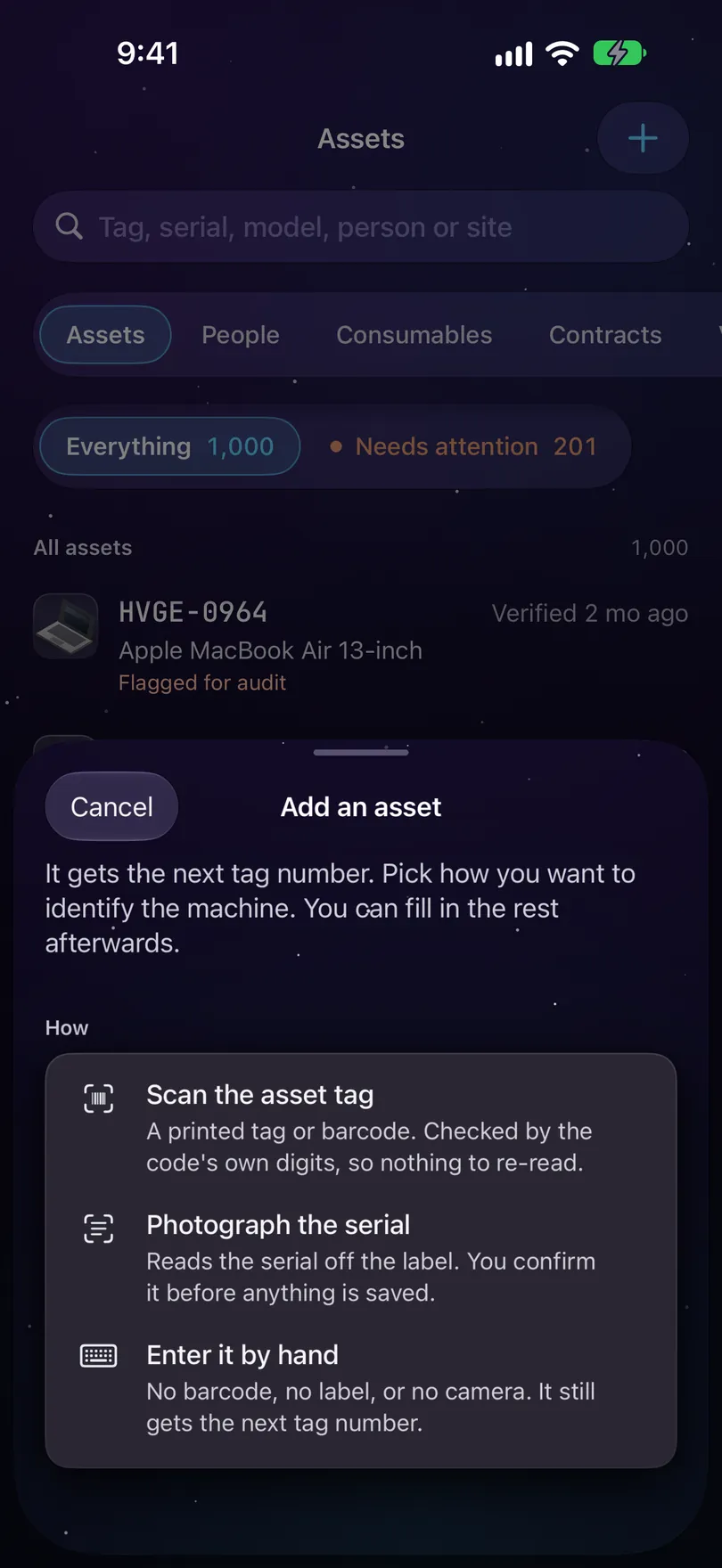
Four ways in. The tag is the asset, and the serial is the point
On screenNew asset
On New asset the tag leads the page. It isn't guessed — it's reserved from whichever register this phone actually has, so two phones intaking at the same bench can't invent the same number. Saving asks for the serial by default, because it's how the record is matched to the physical machine; an admin can switch that off in Settings → Fields, and either way you need at least a serial, a make or a model to save. Anything else the register requires is marked Required right on the form.
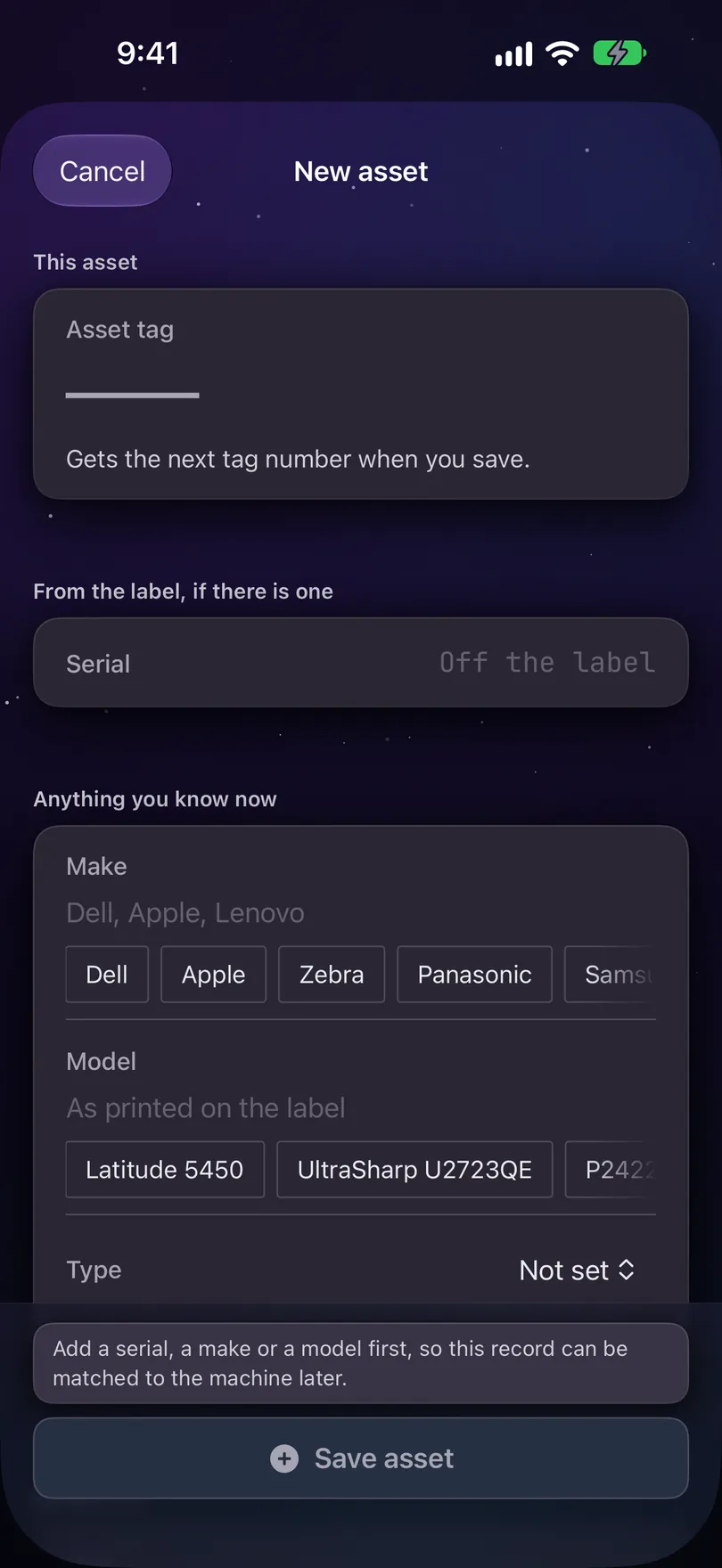
New asset. A serial, a make or a model is needed to save. Fill in what you know
On screenSerial · Make · Model
Make and model offer the ones this register already uses, which is quicker than typing and keeps the spelling the same. Custom fields your register has show here too. If you came in from a search that matched nothing, what you typed sits as a chip you can spend on whichever field it really belongs to — it is offered, never applied.
Pick the type, and the fields for that kind of machine appear. Save it, and expect it back on Home
On screenSave asset
Save asset writes it and gives it the next tag number. The form doesn't ask for a holder or a warranty date, and those are what make a record finished. So a machine added at a rack shows up on Home under Needs you until somebody fills them in. Nothing is guessed for you.
Save asset writes it, and the Added screen takes over. Photograph it, or tag it, while you're standing there
On screenOpen the record · Photograph it · Write an NFC tag
The Added screen has Open the record, Photograph it and, on an iPhone, Write an NFC tag. Photograph the label and any damage now. You can add more from the record later, and Settings → Files (the gear on Home) shows what's been kept or sent.
The Added screen, with the record one tap away. A room's worth at once, from Find it on the network
On screenFind it on the network
Discover lists what this phone can see on the Wi-Fi it's standing on: names, services, and the maker and model a device's Bonjour record gives. Tick many, press one button, and each opens pre-filled. The serial is required — for a device this iPhone found, it's what stands in for the MAC address as the thing an auditor matches to the machine. No IP address is shown or sent, anywhere on that screen.
Stuck on a step, or a screen here does not match the one in front of you? Write to support@depaloconsultingllc.com and say which step. The app moves faster than this page does.