Write to a person
support@depaloconsultingllc.com
For Manifest on macOS and iOS. Read every business day. Most replies go out the same day and all of them inside two.
Or write from inside the app: Settings › Get help on the Mac, or the gear at the top of Home › Settings › Get help on the iPhone. The form shows every line it sends under What we’ll include and gives you a reference. Your register is never attached. On the Mac, Help › Contact support… opens your mail app instead.
22 articles in 5 sections.
Getting started
The demo, where your register lives, choosing a plan, and bringing your assets in.
Try the demoA made-up company, all filled in, free for three days from when you first open it.
The demo is Hill Valley Gas and Electric: a made-up company with 1,000 assets, its people, contracts and paperwork. Nothing of yours goes in it, and there’s no card.
- Open Starkive Manifest and choose Explore the demo first on the first screen.
- Pick Try six things for a short checklist, or Look around on my own.
- Lost? What am I looking at? explains the screen you’re on. On the Mac it’s in the demo banner, and on the iPhone in the Demo pill.
- To come back later: Settings › The demo › Open the demo. To finish early, Leave the demo.
Three days, counted from the first time you open it, not from install. Leaving and coming back doesn’t restart the clock. When the three days are up the demo closes and is removed, and Settings shows it as Closed. Your own register needs a plan: See plans is there throughout.
Where your register livesThis Mac and my devices, or Starkive Cloud, and what we can and can't read.
You choose when you set up, and it decides how everything syncs afterwards.
- This Mac and my devices. The register is a file on your Mac, and nothing is sent to Starkive Cloud. Phones pair with it over your own network while Serve this network is on. On an iPhone used on its own, it’s This iPhone: the register is on the phone and nowhere else.
- Starkive Cloud. Your devices sync through our servers, so a Mac and a phone agree without sharing a network.
What Starkive Cloud can’t read, because it’s encrypted on your device with a key we never receive: regulated scope, disposal records and wipe certificates, lease rent, whether a recovery key is kept, condition notes, custom field values, and every photo and document. A custom field set to Keep off Starkive Cloud never leaves your own devices at all.
On the Mac
Not sure which you’re on? The app menu has Where is my register? To move a local register to the cloud: Settings › Account and plan. Serve this network is under Settings › Connected › Your devices. Leave it off on networks you don’t control.
On the iPhone
To move a register that lives on the phone to Starkive Cloud: the gear on Home › Settings › The register.
Backups. On the Mac: Settings › System › Backup, with Back up to iCloud now and Restore from iCloud…. The iPhone has no backup of its own; it’s included in your iPhone’s own iCloud or computer backup.
Every field, and who can read it, is on the security page.
Choose a planPlans go by how many assets you look after, with a set number of devices each.
Settings › Account and plan › See plans (or Change plan), on the Mac or the iPhone. Tell it How many assets do you look after? and it suggests a size. You can change plan any time.
| Plan | Devices at once |
|---|---|
| Up to 500 assets | 5 |
| Up to 2,000 | 10 |
| Up to 5,000 | 15 |
| Up to 10,000 | 25 |
| Up to 20,000 | 40 |
| Up to 40,000 | 60 |
| Unlimited assets | 100 |
Each size comes as Starkive Local or Starkive Cloud. The price you pay is the one the App Store shows, in your own currency. The US prices are on the plans page.
Bring your assets inA spreadsheet, another tool's export, or a sync from Intune, Jamf Pro or Okta.
The quickest start is the list you already have. Bringing in what you have walks through importing a spreadsheet or another tool’s export.
On the Mac
Settings › Connected › Integrations: Microsoft Intune + Entra, Jamf Pro and Okta.
On the iPhone
Integrations are set up on the Mac. On the phone you add machines one at a time, with the camera on the label or by typing. See Add an asset.
Invite people and approve their devicesOnly the owner invites. Each new device waits for approval before it gets the key.
People and invitations need Starkive Cloud. Only the organisation’s owner can invite, and everyone joins as an admin.
On the Mac
Settings › Organisation › People › Invite a person. Type their address and choose Invite, or Copy link to send it yourself.
On the iPhone
The gear on Home › Settings › People. Type Their email address and Send an invitation.
They get an email, make their own sign-in from it, and their device then waits for you. To let it in:
On the Mac
Settings › Protected records › Waiting for you.
On the iPhone
Settings › Your devices › Waiting for you.
Check the characters match the ones on their screen, then choose Approve, or Not this one. Approving shares the organisation’s key with that device only. Anyone can approve their own devices; owners approve everybody’s. An invitation you no longer want can be withdrawn with Withdraw.
Everyday tasks
Reading a record, choosing its columns, your own fields, verifying machines and the map.
Read an asset recordEvery field in one table: Field, Value and Source.
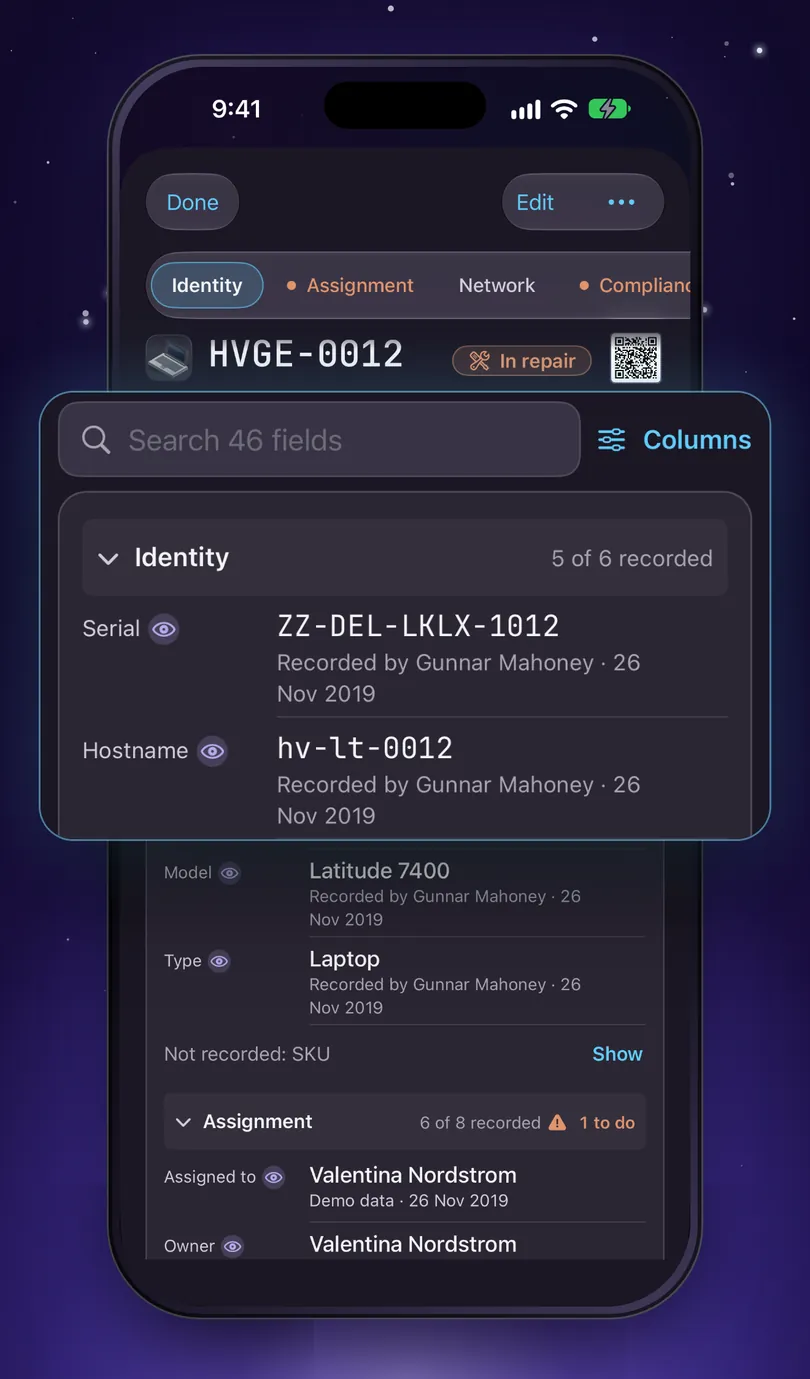
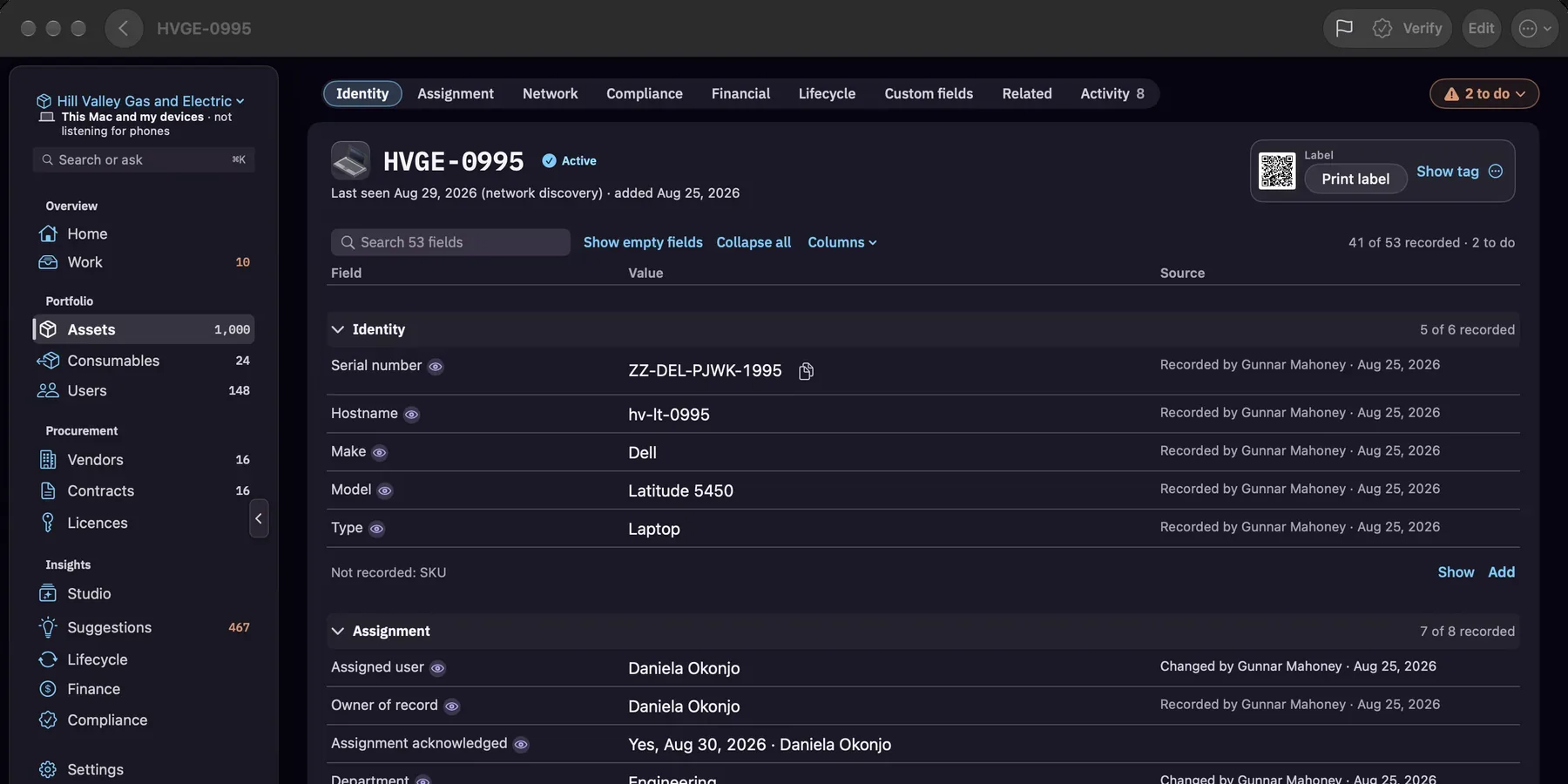
A record is one table in sections: Identity, Assignment, Network, Compliance, Financial, Lifecycle, Custom fields, Related and Activity. Each section head says how much is filled in, like 5 of 6 recorded · 1 to do.
Under each value is its source: who recorded it and when, like Recorded by Gunnar Mahoney · 26 Nov 2019, or where it came from, like an import, a directory sync, a phone scan, or Worked out from purchase date.
On the Mac
One card holds the name, the search (Search 52 fields, for example), Show empty fields, Collapse all, the Columns menu and the table. The 3 to do chip above it lists what’s missing and jumps to each row.
On the iPhone
Search the record with Search 46 fields (the number is the record’s own). Tap a section head to fold it. Empty fields fold into one line, like Not recorded: Owner, Department, +2, with Show and Add. There’s no Show empty fields or Collapse all on the phone.
Choose what shows under each valueColumns adds who changed a field, when, which standards need it, or what it was.
Field and Value are always shown. The others are yours to switch on:
| Source | How, who and when, in one line. On to start with. |
| Changed by | Who last changed the value |
| Changed on | When the value last changed |
| Needed for | The standards that ask for the field |
| Was | The value before the last change |
On the Mac
The Columns menu on the record, under Show columns. Reset to default puts it back.
On the iPhone
The Columns button beside the search, under Under each value. Each one shows as an extra line under the value. Reset puts it back.
Your choice stays on that one device. Nothing on the record changes.
Add your own fieldsSettings › Fields: templates, your own fields, which section they show under.
On the Mac
Settings › The register › Fields. Or, from any record, the ⋯ menu › Fields…, and changes show on that record straight away.
On the iPhone
The gear on Home › Settings › Fields.
- Start from Add from a template: Laptops and desktops, Phones and tablets, Monitors, Servers, Network gear or Printers. Or make your own with New field on the Mac, Add a field on the iPhone.
- Pick a type: Text, Number, Date, Yes / No, or Single choice.
- On the Mac, Show under puts the field in a section of the record: Identity, Assignment, Network, Compliance, Financial, Lifecycle, or Custom fields at the end. Both devices follow it.
- Where values are kept: Synced, encrypted, or Keep off Starkive Cloud so what you type stays on this Mac and your paired iPhone.
Built-in fields can be switched to Shown or Required. Only an admin can change those switches. Some older screens still call this page Custom fields; it’s the same place.
Verify a machineRecord that you've seen it, with your name and the time.
Verify stamps the record with the date and your name, and writes Physical inventory verified to its history. The record then says when the next check is due, like Due in 30 days or Overdue.
On the Mac
Verify in the record’s toolbar, or ⋯ › Mark verified (physical inventory), or Verify in the Assets panel. One machine at a time, on purpose: there’s no bulk verify.
On the iPhone
When a check is due, Verify sits at the foot of the record. You can also swipe a row in Assets from the left, or tap Verify after a scan. Verifying a flagged machine on the phone also clears its flag.
Sweeps are different. On the iPhone, Start a sweep walks a room or a stockroom and records each machine as Seen on a sweep. That’s a sighting, not a verification. Sweeps are iPhone only.
The camera and NFC steps aren’t pictured here, because we can’t capture them on a simulator. Verify an asset and Sweep a rack have the steps.
See your sites on the mapMac only: Assets › View › Map, then World, country, site.
On the Mac, in Assets, open the toolbar’s View menu and choose Map. It starts at World; click a country, then a site, to list its assets, and a row to open the record.
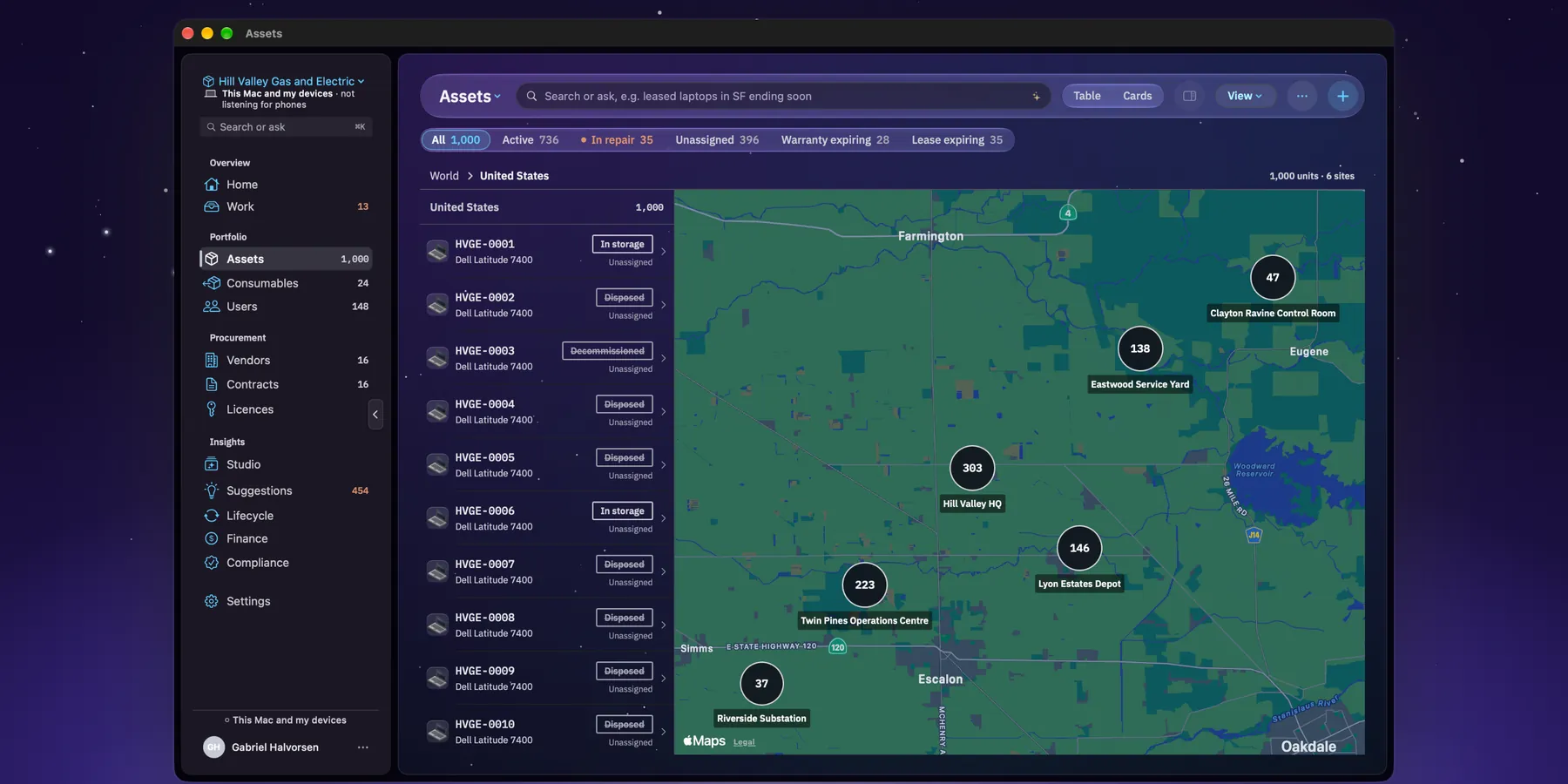
Placing your sites. At World, Place N sites opens Settings › Sites. For each site, Geocode address once (via Apple), or click the map to drop a pin. Only the address is sent to Apple, once, and never asset data. Coordinates stay on this Mac.
Machines with no country set sit under Unassigned until they get a location. The iPhone doesn’t have the map.
Compliance
What's missing, and the one file you hand your auditor.
See what's missing for an auditGaps show on each asset, with the button that fixes them.
Answer the scope questions once and Manifest works out which standards apply. Then:
- On a record, anything a standard needs and the record doesn’t have is marked, with its button on the row. Needed for in Columns shows which standards ask for each field.
- On the Mac, the 3 to do chip on a record jumps to each one, and Compliance shows the portal: frameworks, reports and assigned work.
- On the iPhone, the Compliance tab leads with your biggest gaps, each with one next step, like Review, Add or Start a sweep.
More in Compliance on the Mac and on the iPhone.
Make the evidence packOne ZIP for your auditor: the register, the change log, the worklists and certificates.
On the Mac
Compliance › Generate audit evidence pack.
On the iPhone
Compliance › Evidence pack › Audit evidence pack, then share it from the share sheet.
The pack maps every file in it to the controls it evidences, and lists what’s still missing. Manifest gets the evidence ready; whether you pass is between you and your auditor. What’s in the pack.
Account and billing
Connected apps, cancelling, refunds, what happens when a plan ends, and deleting an account.
Connect another app with an API keyOwners only, on Starkive Cloud. The key is shown once.
On the Mac
Settings › Connected › Connected apps.
On the iPhone
The gear on Home › Settings › Connected apps.
- Choose Connect an app.
- Fill in What is connecting, decide whether to Let it add and update assets, and pick the Fields it can read. Then Connect.
- Copy the key straight away: This is the only time this key is shown. Then I’ve saved it.
A key reads the assets you choose, can’t see anything encrypted, and can’t delete. Switch off stops it; Renew extends it. Only the organisation’s owner can connect apps, and it needs Starkive Cloud. If a plan ends, existing keys keep reading for 30 days, then stop. The API reference.
Cancel, or ask for a refundBoth go through Apple, because that's who you bought from.
Cancel. On the Mac: App Store › your name › Account Settings › Manage, next to Subscriptions. On the iPhone: Settings › your name › Subscriptions. Or open apps.apple.com/account/subscriptions on any device. You keep what you paid for until the end of the period.
Refund. Apple handles refunds, and the decision is theirs. Start at reportaproblem.apple.com. If something we did caused the charge, write to us first. We can’t move the money, but we can tell Apple what happened.
If your subscription endsYour register stays readable and exportable. Only adding and editing stop.
It’s never locked. Reading, reporting and exporting keep working; adding and editing stop until you choose a plan again.
- This Mac and my devices: nothing of yours was ever on our servers, so there’s nothing for us to keep or delete.
- Starkive Cloud: the cloud copy goes read-only for 30 days. We email you when it ends and again a week before the date, then delete it from our servers (hosted in the US, AWS us-east-1). Your Mac or iPhone keeps its own copy until you remove it.
Delete your accountIt's under Account and plan, and it doesn't cancel the subscription.
On the Mac
Settings › Organisation › Account and plan › Delete account…. It’s shown when you’re signed in to Starkive Cloud.
On the iPhone
The gear on Home › Settings › Account and plan › your account › Delete account….
- Export anything you need to keep, first.
- Cancel the subscription with Apple too: This does not cancel your subscription. See Cancel, or ask for a refund.
- Choose Delete my account. If you own an organisation that has other people in it, you type DELETE and choose Delete the organisation and my account.
If you’re the only person in your organisation, it’s deleted with you: assets, people, contracts, documents, photographs and the audit trail. If other people are in it, they keep it and you’re removed. The Mac keeps its own register. An iPhone keeps it only if the register lives on that phone; otherwise the phone is emptied.
A register on This Mac and my devices has no account with us, so there’s nothing of it on our side to delete.
Troubleshooting
The messages people ask about most, and what to do.
“It's waiting for approval”Nothing is wrong. Someone has to approve the new device.
A new Mac or iPhone can’t open protected records until it has the organisation’s key. Ask the person to approve it from their own device, or the owner: see Invite people and approve their devices. Check the characters on both screens match before approving.
“Every place is taken”Your plan's devices are all in use.
Each plan covers a set number of devices at once, your own included. On the Mac, Settings › Organisation › People shows N of M devices in use. Remove a device you no longer use to free its place, or move up a plan. See Choose a plan.
“Needs Starkive Cloud”People, invitations and connected apps live in Starkive Cloud.
On a register that lives on your own devices, there’s no organisation in the cloud for people or keys to belong to. Moving to Starkive Cloud is in Settings › Account and plan on the Mac, or Settings › The register on an iPhone used on its own. If you’re on the cloud and see Needs a cloud account, sign in first.
My iPhone can't find my MacOn a local register, the Mac has to be serving your network.
On the Mac, turn on Settings › Connected › Your devices › Serve this network, and make sure both are on the same network. It starts off, and the demo keeps it off. Joining a Mac has the full steps.
“Waiting for prices”The App Store hasn't answered yet.
Prices come only from the App Store, so the plan screen waits for them rather than guessing. Check you’re online and signed in to the App Store, then open the plan screen again. If it keeps happening, write to us.
I've lost my devices, or my recovery phraseWhat we can and can't do, and why.
We can’t recover a register or reset encryption, because we never hold the key. If you still have one approved device, it can approve a new one. If you have an iCloud backup on the Mac, restore it from Settings › System › Backup. The section below, What no message can change, explains the rest.
Longer guides: the documentation for the Mac and the iPhone, and screen-by-screen iPhone guides.
What no message can change
These come from how the product is built, not from policy we could be talked out of. Knowing them now is much cheaper than finding out later.
We cannot recover your register
On a register that lives on your own devices, your copy is the only copy in existence. If it is gone and there is no backup, it is gone. This is the same property that keeps it off our servers.
We cannot reset or recover your encryption
The key is wrapped for your devices and never reaches us. Lose every device and the recovery phrase, and the protected fields cannot be opened again, by you, and not by us either.
We cannot read your protected data
On Starkive Cloud the protected fields are encrypted with a key we never receive. Please don't email us your register, an export or a backup. An export is not encrypted, and it would then sit in an inbox for no benefit to anyone.
We cannot tell you whether you pass
Manifest produces the evidence: scoping decisions, sanitisation records, the audit trail. Whether your controls satisfy your auditor is between you and them.
Nobody from Starkive will ever ask for your recovery phrase.
There is no situation in which we would need it, and we could not use it if you sent it. Anyone who asks you for it is not us.
Write it once and it can be answered once
Five lines. Manifest doesn't make a log bundle, so everything below is something you can read off the screen in front of you. The in-app form adds your app and OS version for you.
| Which app, and its version | Starkive Manifest › About Starkive Manifest on the Mac. On the iPhone, the gear at the top of Home, then Get help: it lists the version under “What we’ll include”. |
| Your macOS or iOS version | Apple menu › About This Mac, or Settings › General › About. |
| What you were doing | The screen you were on and what you pressed. Most faults are one screen wide. |
| What you expected | These turn out to be different sentences more often than you would think. |
| What happened instead | Error text typed out beats a description of it. A screenshot is fine. |
If the register itself has stopped being readable, say so first. That decides whether this is a display problem or a data problem, and only you can see which one you have.
Accessibility
Manifest on iPhone follows the accessibility settings you already use.
- VoiceOver reads out what you just recorded, like a Verify or a Flag, and says so when something wasn’t recorded.
- Increase Contrast gives cards and filters a firmer edge.
- Reduce Transparency makes the glass less see-through.
- Text size is followed throughout, and Reduce Motion skips the animations.
If something doesn’t work with the way you use your iPhone, write to us. We treat that as a bug.
Reporting a security problem
Same address, with SECURITY at the start of the subject so it is not read in order behind everything else. Tell us what you found and how to reproduce it. We will confirm receipt, tell you what we intend to do, and credit you if you want to be credited.