Open the record you mean to change
On screenAssets
From Assets, search and tap the row. Check the tag in the header against the machine before you change anything.
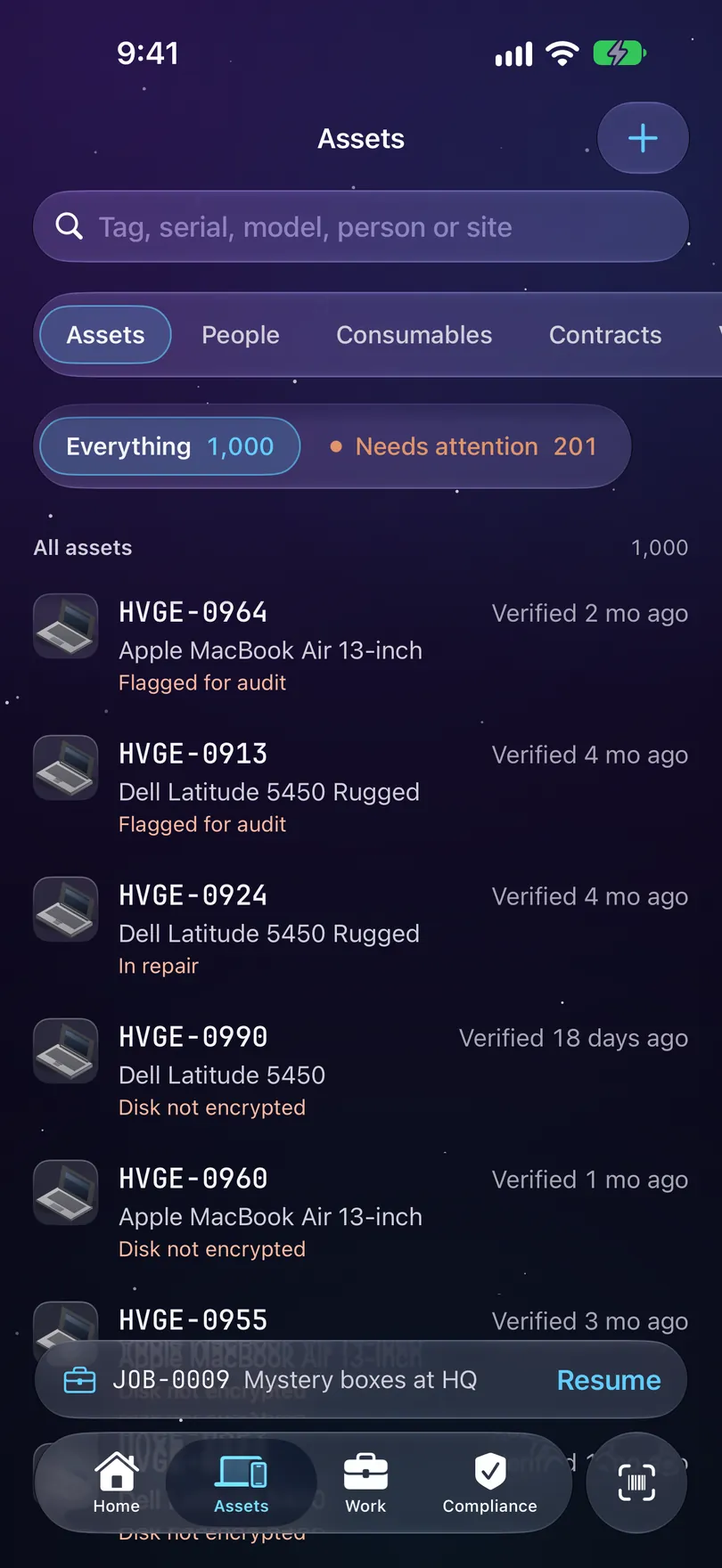
The Assets tab. Five collections behind one search bar, and the filters beside it. Tap Edit, or just tap the status or a value
On screenEdit
Edit is at the top right, beside •••, with Done on the left. It replaces the record with one form. The status pill opens the same Status editor without going through the form, which is the fast path for the one field most people change.
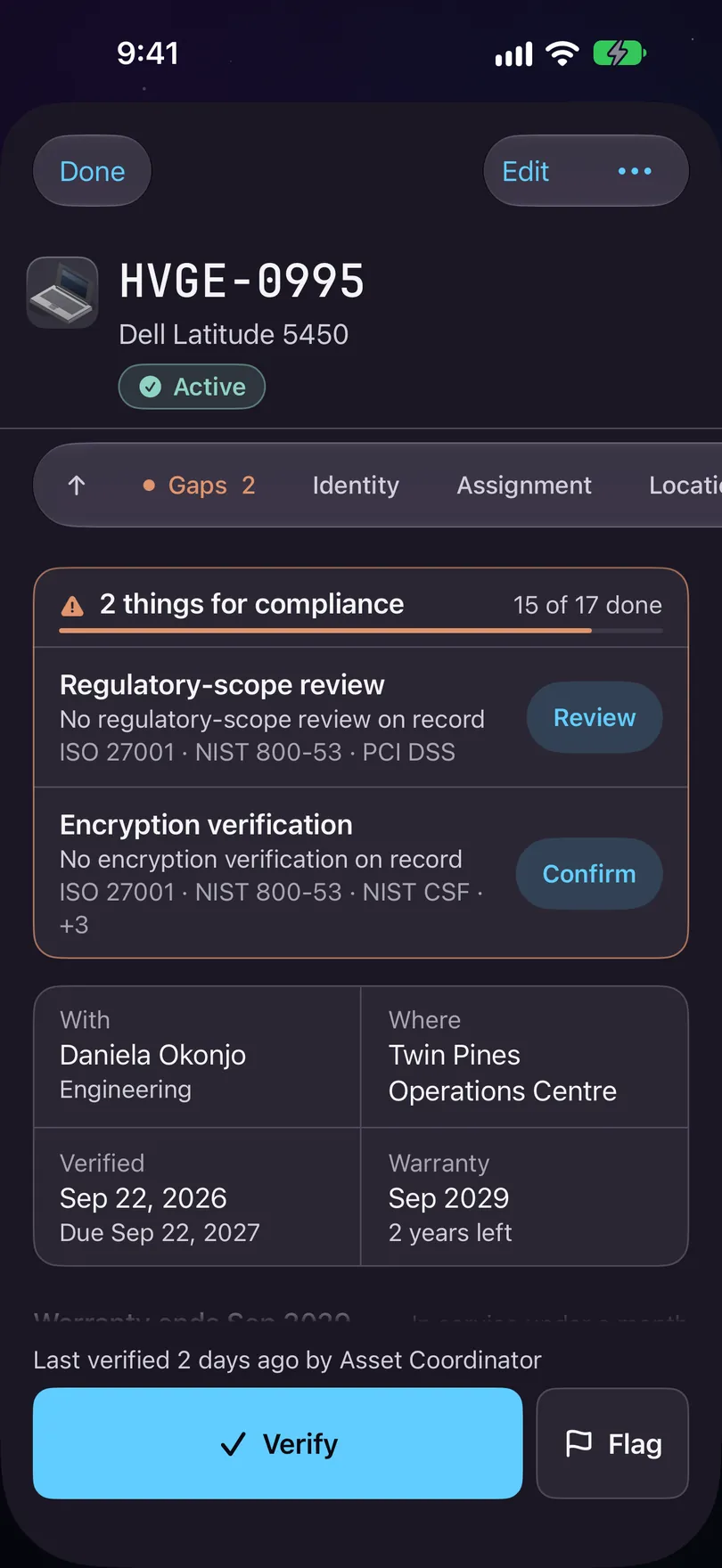
One record, opened. One card of bands, from Identity to Activity. One form, with every field
On screenCancel · Save
Cancel on the left, Save on the right, and the only commit is that Save. Condition comes first, because Status is the most-changed field, then the record's own order. Tap a row to change it; every row opens the same editor, whether you came from the record or the form. Fields your register's rules hide show as N more fields on a section, and opening them puts their rows right there.
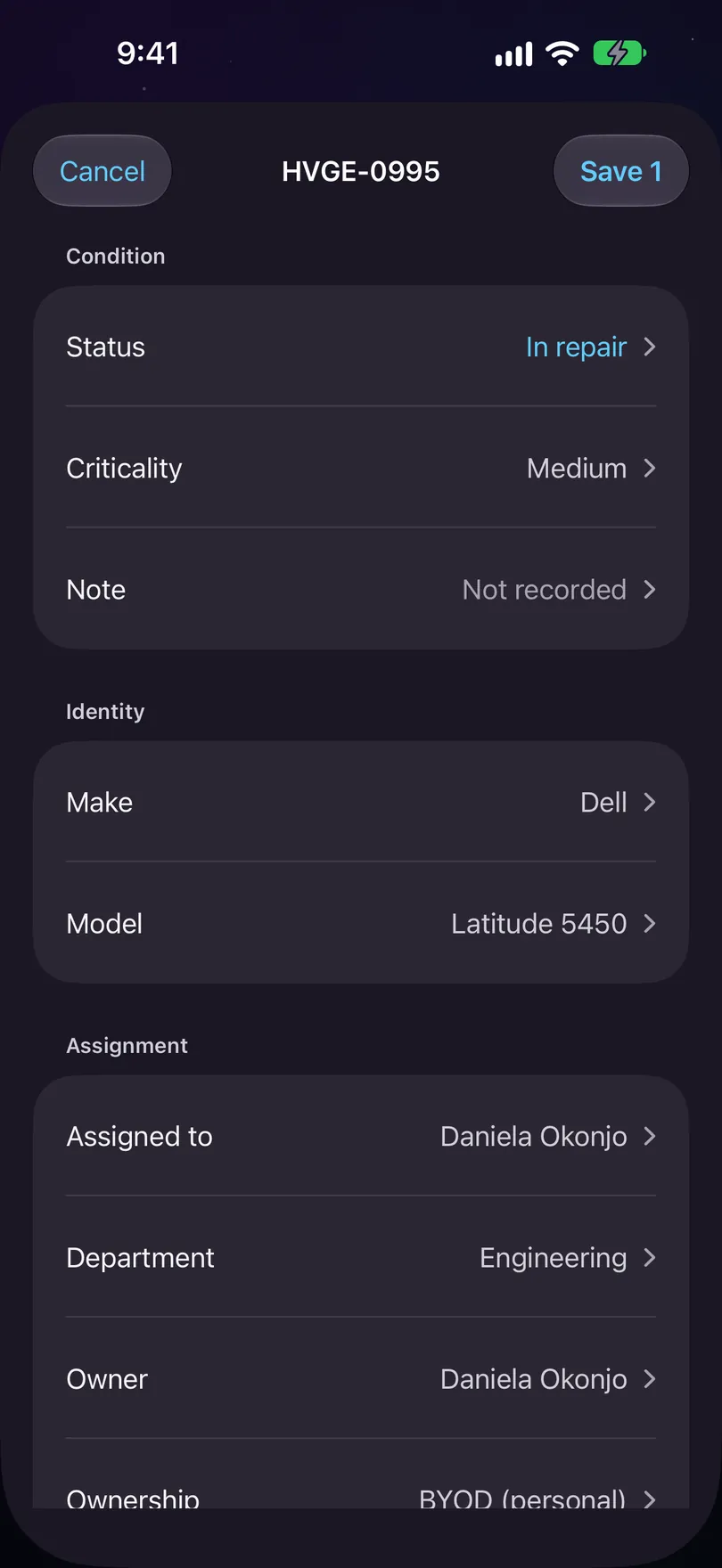
Editing. One form, and nothing is written until you tap Save. Changes wait, and Save counts them
On screenSave 1
Nothing is written while you edit. Save counts what you've changed, like Save 1 or Save 3, and one press writes the whole lot as one change. If the register refuses one — a required value left empty — the form stays, the reason is drawn in caution at the top, and nothing else is lost.
Cancel asks, because there's something to lose
On screenDiscard
Cancel, or swiping the record down, asks Discard 1 change? Your change hasn't been saved, and discarding leaves the record as it was. It only asks when you've changed something.
Lost, stolen or disposed of has its own path
On screenIt was disposed of instead
Setting Lost or Stolen stages the status and asks about book value — see Mark a machine lost or stolen. Disposed is not a status you can pick at all: a disposal needs its own record. From the record's •••, Delete ends with It was disposed of instead, which stages the disposal and takes you to photograph the certificate.
Verify instead of editing, when that's what you mean
On screenVerify
If the machine is where the record says and with who the record says, that's a verification, not an edit. Verify records that somebody saw it, and that date is what an auditor checks.
Every change is signed, and the receipt is honest
On screenN changes not sent
The Activity band keeps who changed what and when, and the register signs every save. The receipt after a save also says the truth about arrival: if the change hasn't reached everywhere it's going, the record says N changes not sent rather than claiming it landed.
Stuck on a step, or a screen here does not match the one in front of you? Write to support@depaloconsultingllc.com and say which step. The app moves faster than this page does.