Home tells you where the register lives before anything else
On screenOn this iPhone
The top line is your organisation's name. The line under it is a fact about your data: how many assets, and where they live. On a phone holding its own register it reads On this iPhone. A phone paired to a Mac or signed in to Starkive Cloud says that instead. Know which one you're on, because it decides what a stale number means. The same fact heads Settings, on the mode band.
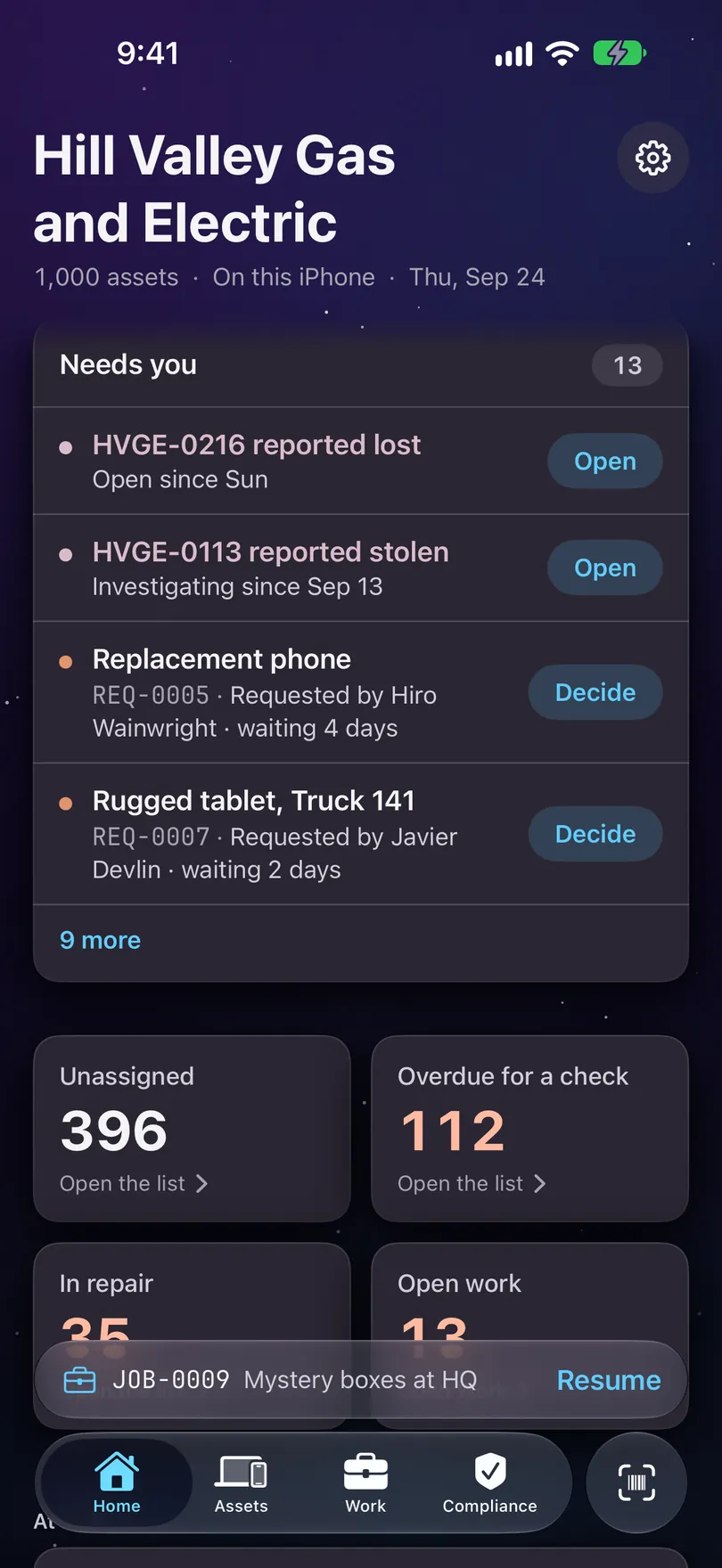
Home. What needs you, worst first, then four figures for the fleet. Getting set up is your checklist
On screenGetting set up
Until setup is done, Home shows a Getting set up card with a percentage. Tap a row and it opens that exact job: your name, the Face ID lock, signing in, encryption or compliance scope. Done rows get a tick. It goes away on its own once everything is done.
Needs you is the work, one row at a time
On screenNeeds you
Needs you is one prioritised list with one action per row, not four summaries to interpret. Every open lost or stolen incident comes first, in alarm colour, and never hides behind a count. Then decisions waiting on you, with Decide; the jobs addressed to you; rooms due a sweep, with Sweep; and after those, the quieter to-dos: machines flagged for audit, new arrivals still short of a holder or a warranty date, and records with no serial.
Four figures count the fleet
On screenUnassigned · Overdue for a check · In repair · Open work
Unassigned, Overdue for a check, In repair and Open work. Three of them carry caution, because they ask for something; Unassigned stays quiet, because kit on a shelf is supposed to be on nobody. Tap one and it opens the list it counts.
Ending soon is what a calendar does to a fleet
On screenEnding soon
Under the figures sit the cards: the assets card, with what the fleet cost on the right, and tapping that figure opens Finance, because a number that big wants its explanation; Compliance, for the frameworks that apply to you; and Ending soon, where machines going out of warranty and leases running out collect quietly. They're standings, not reports — nothing here needs running.
Then five tabs, and a gear
On screenHome · Assets · Scan · Work · Compliance
Assets is the register, and it lands there straight away: People, Consumables, Contracts and Vendors are collections in its title menu, not places of their own. Scan is the camera and the NFC reader. Work holds jobs and requests, each with a number like JOB-0001 or REQ-0001. Compliance shows which frameworks apply and what's still missing. Settings is the gear at the top of Home: your name, the lock, the register, fields and your plan. There's no More tab and nothing hides behind one.
Stuck on a step, or a screen here does not match the one in front of you? Write to support@depaloconsultingllc.com and say which step. The app moves faster than this page does.