Before you start
- A route. Verification is a walk, not a search: work a stockroom or a floor rather than a list of tags.
- Your verification cadence, so you know what counts as due. Every screen uses that number.
Filter to what's due before you leave the desk
On screenNeeds attention
Open Assets and tap Needs attention, beside Everything. It shows your own count, like Needs attention 201, and means one of three things: past your verification cadence, flagged for audit, or in repair.
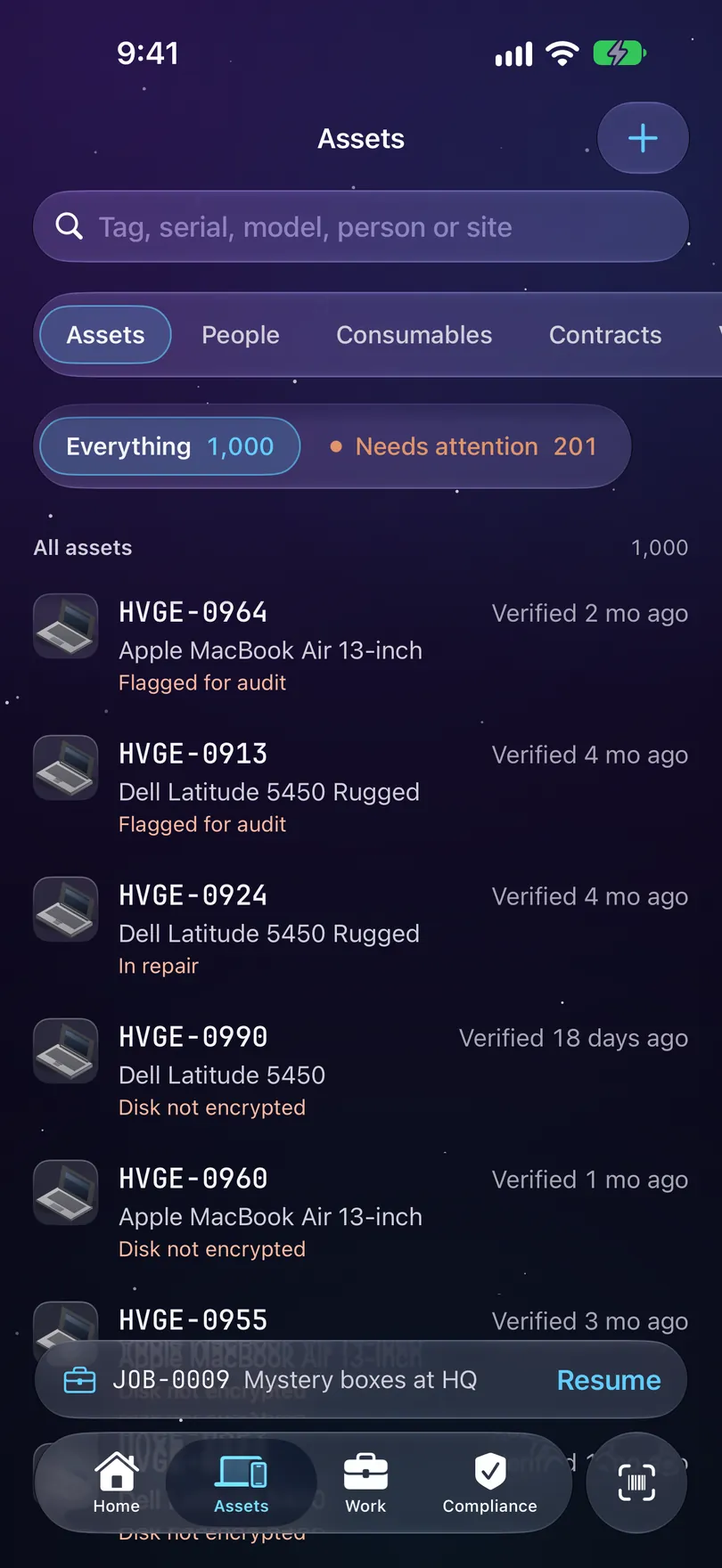
The Assets tab. Five collections behind one search bar, and the filters beside it. Go from the machine to the record, not the other way
On screenScan · Read an NFC tag
Open Scan and read the tag on the hardware. Going from the machine to the record catches a machine that isn't in the register at all. If your machines have NFC tags, Read an NFC tag is on the same screen and needs no lens.
Verify from the card
On screenVerify
A hit puts a card over the live camera, naming the machine and why it's on your list. Verify is the big button, sized for one thumb. Tap it and it answers Verified. The camera never stops.
Scan next, and keep walking
On screenOpen · Scan next
Scan next clears the card for the next machine. Open takes you to the record when you need it, and Check out or Check in hands the machine over from the card.
On the record, the bar says why it's due
On screenNever verified · Overdue · Verified today ✓
The Verify bar stands only while a check is due, and its first line is the reason: Never verified, Overdue with the date underneath, Due today, Due in 12 days, or Flagged for audit. A record verified today reads Verified today ✓ and offers no second Verify to the person who did it. Somebody else's verification today still leaves the small Verify on the tile, so a technician at the machine can add their own sighting.
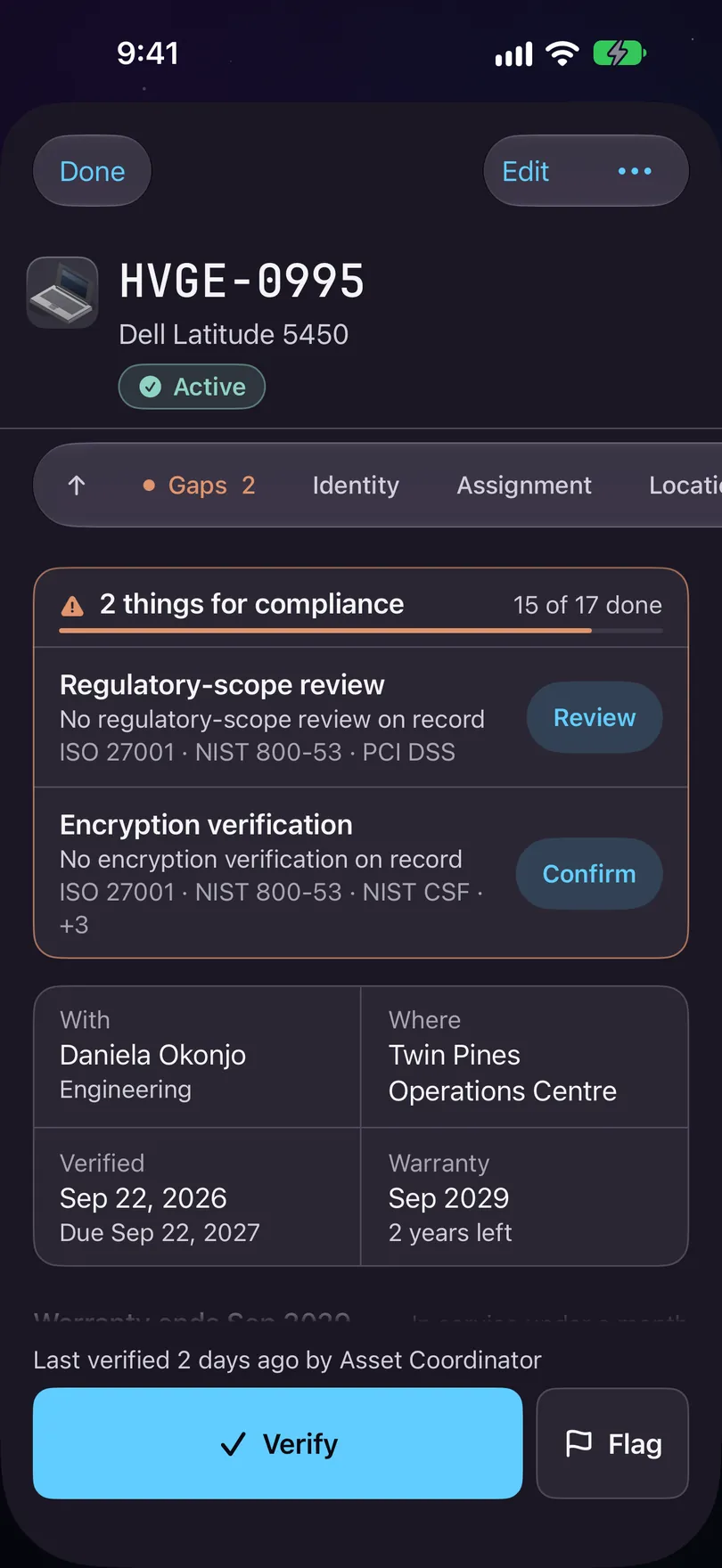
One record, opened. One card of bands, from Identity to Activity. Flag it instead if something's wrong
On screenFlag
Wrong holder, wrong room, damage, or not where it should be. Flag says you looked and it wasn't right, which is more useful than saying nothing. Don't verify a machine you couldn't find.
Scan needs a camera, and the simulator these captures come from has none: it says Camera scanning isn't available. Read an NFC tag or add it by hand instead. Every button named above is read out of the app, and the screens go in once they're photographed on a real iPhone.
Stuck on a step, or a screen here does not match the one in front of you? Write to support@depaloconsultingllc.com and say which step. The app moves faster than this page does.