Home
Home is what you see when you open Manifest. It reads like a desk in the morning: what needs you first, four figures beside it, the register at a glance underneath, and one line of what Manifest noticed along the foot.
- For
- Showing what needs you today, and opening the list behind every figure on the screen in one click.
- Will not
- Rearrange it. The order is fixed, worked out from what needs you first. The only thing you can add is a chart you built in Studio, at the foot, from Settings under Home charts.
- Writes
- Almost nothing. Home reads the register and reads it again whenever something changes. The exceptions are Hide on the setup card, which this Mac remembers, and Remove from Home on a pinned chart, which changes the Home charts setting.
- On iPhone
- The iPhone has its own Home, reading the same register.
What you are looking at
One page, read in the order your eye takes it: top left first, then along the top, then down.
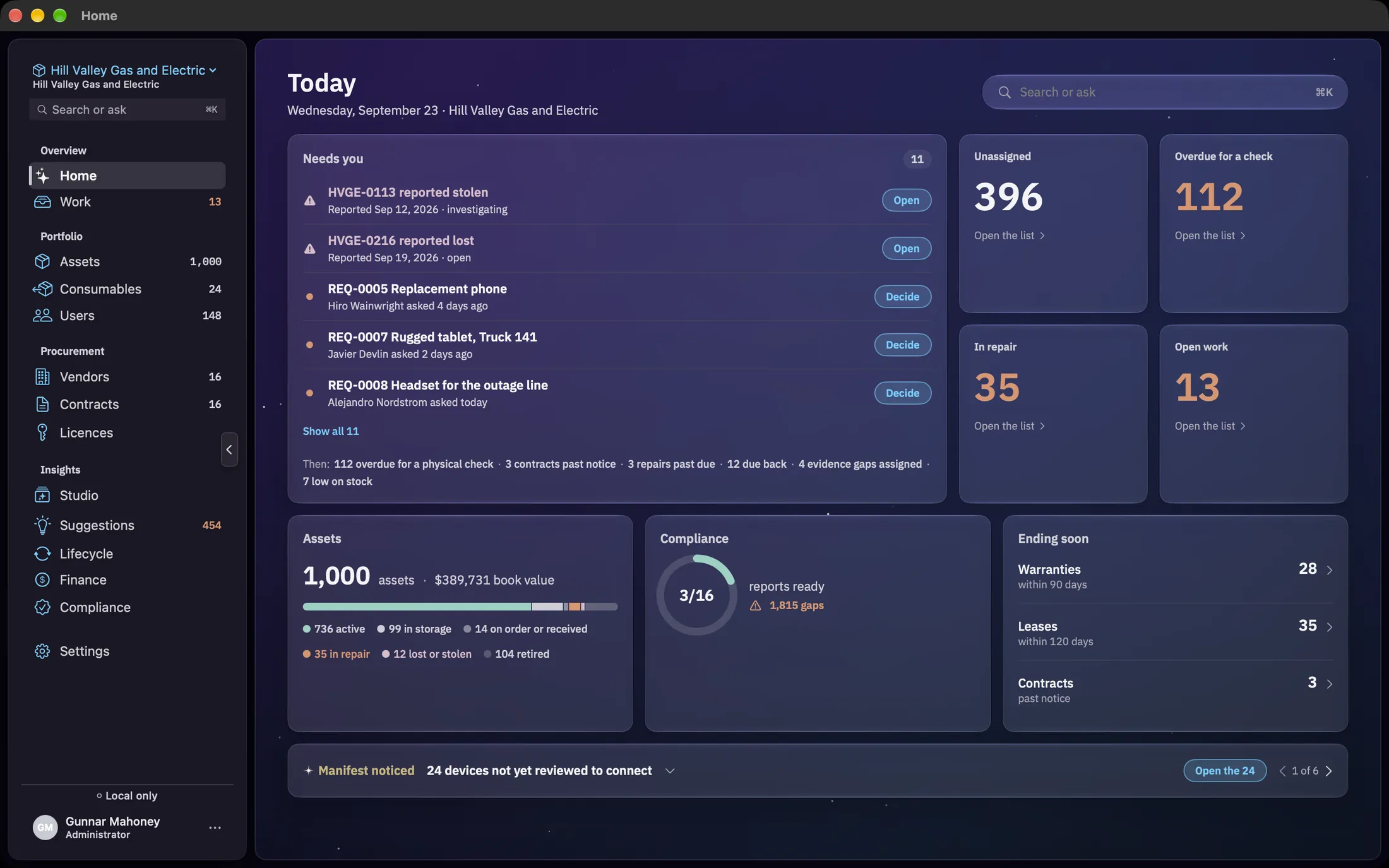
The header reads Today, and under it the date and your organisation name, for example Wednesday, September 23 · Hill Valley Gas and Electric. The date follows your Mac’s own region settings, so a British Mac puts the day first. The Search or ask field sits at the top right.
Below the header, in order: Needs you with the four figures beside it, then the Assets, Compliance and Ending soon cards, then the Manifest noticed strip. In a narrower window the figures move under Needs you, first in a row of four and then two by two, and the three cards stack. Needs you stays first in every arrangement, and the page scrolls rather than clipping anything at a small window or a large text size.
Every figure on the page opens the list it counts. The figure and the list come from the same read of the register, so the number you click is the number of rows you land on.
Home keeps itself current. When something changes in the register, whether you edited it on another screen or it arrived from another device, Home reads it again, so it is already up to date when you come back. While the first read is running it says Reading the register… and shows no figures, because a zero drawn before the register has been read would be a false number. If the read fails, Home says so in place of the figures rather than looking like a quiet day.
Search or ask
One field that does two things. Typing searches. Pressing Return asks.
Type, and it searches as you go. After a short pause, and from two characters, the field searches six kinds of record at once: Assets, People, Contracts, Licences, Vendors and Requests. The results appear under the header, grouped by kind with a count on each group and up to eight rows in it. A line such as +12 more assets opens that kind’s own screen, and for assets it carries what you typed with it.
Clicking a result opens it: an asset opens in Assets, a request opens in Work, and a person, vendor, contract or licence opens its own screen. If nothing matches, the field says Nothing in the register matches followed by what you typed. If the register could not be read, it says that instead, so a failed search never looks like an empty one.
Press Return, and it asks. The answer appears at the top of the results, with a dismiss control that clears the answer and keeps the results underneath. Questions that ask for a number, such as how many, are answered with an exact count taken from the register, for example You have 9 laptops that are in repair., with the first of those machines listed under the sentence. Each row opens that asset.
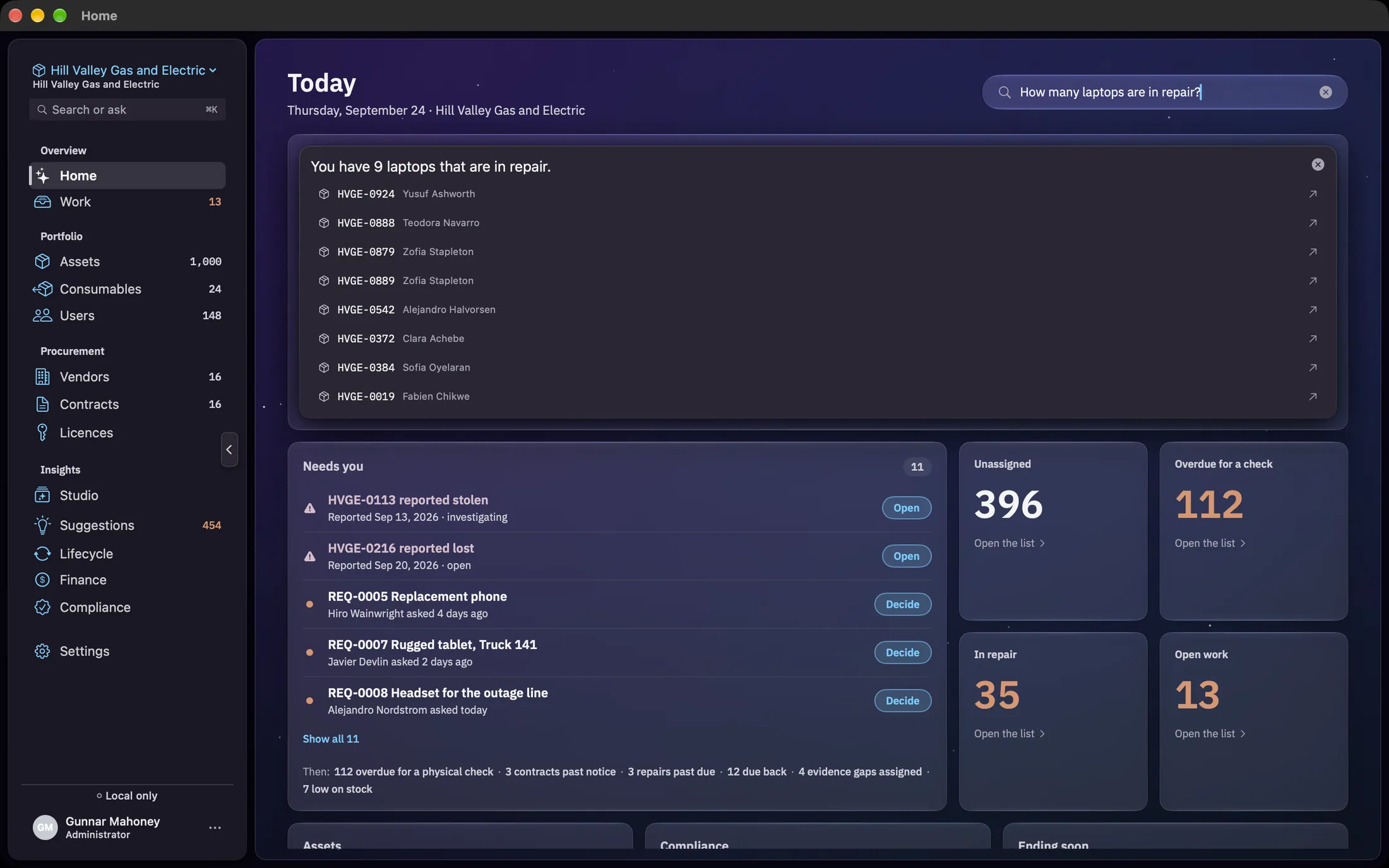
The answers come from the asset register. A question about something else, such as licences, contracts, work or consumables, gets a plain reply saying it can only answer from the asset register here, and naming the area that holds what you asked about. Other questions about your hardware are answered from the register directly where they can be, and otherwise by the on-device model on a Mac that has Apple Intelligence, which reads your assets rather than describing them in the abstract. On a Mac without it, a keyword parser answers instead. An answer only links the assets it actually names.
When you click into the field before anything is found, it offers two rows of shortcuts. Go to opens Assets, People, Contracts, Licences, Vendors or Requests. Try asks one of four questions that work on any Mac: How many laptops do we have, How many assets are unassigned, How many are in repair and Show me leases ending soon.
⌘K on Home puts the cursor in this field. On any other screen it opens the same field over what you are looking at, as does Search or ask at the top of the sidebar. Escape clears the field. The field no longer sends chart requests to the Studio; to build a chart, open Studio from the sidebar.
Needs you
One list, worst first, with one button on each row that says what it does.
The card is headed Needs you, with the number of items beside it. The list is built in three tiers, and the order is the point:
- Lost and stolen machines. Each open loss or theft incident, such as HVGE-0113 reported stolen, marked with a warning triangle. The line underneath gives the notice deadline if one has been recorded, or when it was reported and where the incident stands. Open opens the incident in Compliance.
- Decisions. Requests waiting on a yes or no, oldest first, each with who asked and when, such as asked 4 days ago. Decide opens the request in Work. Devices waiting to be approved on your network are one row here, such as 24 devices waiting to connect, and Review opens Assets on Pending review.
- Your own work. Jobs you have claimed, and jobs sent to you that are due today, tomorrow or the day after, or already late, then approved requests waiting to be handed over. Open opens each one in Work.
The first five show. When there are more, Show all 11 opens the rest in place, and Show fewer folds them away again.
Under the rows, a line starting Then: lists everything else outstanding, and each part opens its own list:
- overdue for a physical check opens Assets on Verification due.
- contracts past notice opens Contracts, showing only those past their renewal notice date.
- repairs past due opens a list of repairs past their expected return date, each opening the asset.
- due back opens Work on Earlier Mac requests, showing the returns still out.
- evidence gaps assigned opens Compliance.
- low on stock opens Consumables, showing only what is under its reorder point.
A part with nothing behind it is left out of the line. When nothing needs you, the card says Nothing needs you right now, and the line reads Still open: if anything else is outstanding. On a day when nothing at all is outstanding, the card adds one sentence saying what was checked and when.
The four figures
Four numbers that ask somebody to act this week, each opening exactly the list it counts.
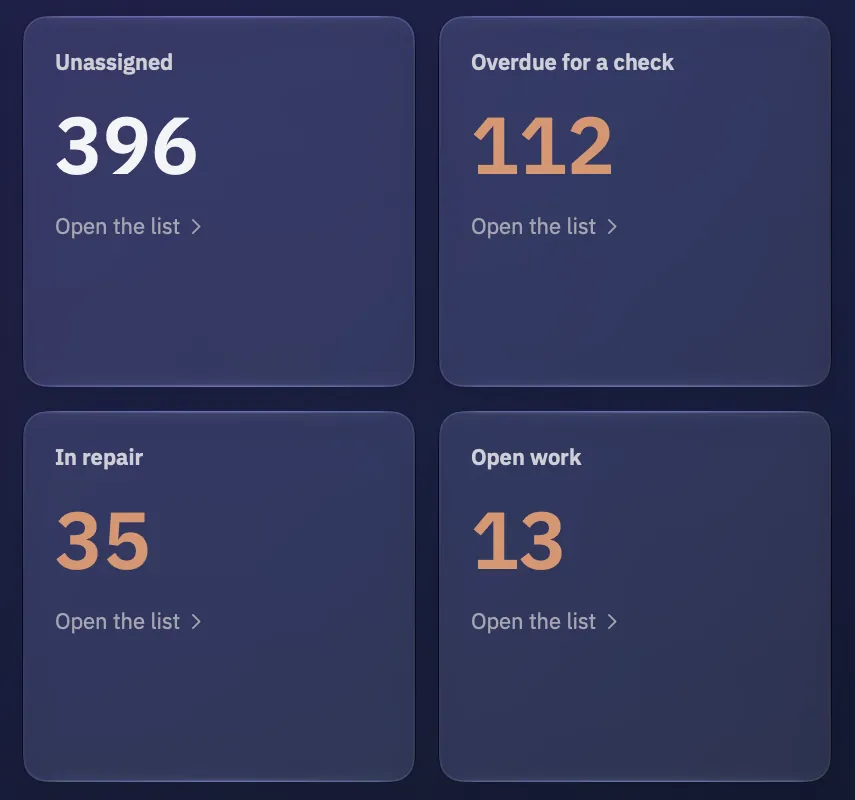
- Unassigned opens Assets on Unassigned.
- Overdue for a check opens Assets on Verification due. The window is the physical inventory cadence set in Settings.
- In repair opens Assets on In repair.
- Open work opens Work on Open, and matches that chip’s count.
Unassigned stays in the ordinary text colour whatever its number, because an unassigned machine is stock ready to issue rather than a problem.
The register at a glance
Three cards under the top row: the assets you hold, how far the evidence has got, and what ends soon.
Assets shows how many assets you hold and, when any of them carry a price, their book value, for example 1,000 assets · $389,731 book value. The book value is the same figure Finance shows, with disposed and decommissioned machines left out. Clicking the count opens every asset, and clicking the book value opens Finance.
Under it, one bar shows the register by state, with a legend that gives each part as a number: active, in storage, on order or received, in repair, lost or stolen and retired. A state with nothing in it is left out. Active, in storage and in repair open their lists in Assets. On order or received, lost or stolen, and retired have no list of their own in Assets, so they show their number and open nothing.
Compliance shows a ring of reports ready against reports your programme needs, such as 3/16 reports ready, and the number of evidence gaps beside it, such as 1,815 gaps. These are the Compliance portal’s own figures. The ring measures evidence on file; it is not a verdict. With no gaps it says No evidence missing. If nobody has answered the scoping questions yet, the card says Not scoped yet instead. The whole card opens Compliance.
Ending soon always has three rows, even when a count is zero:
- Warranties, within 90 days, opens Assets on Warranty expiring.
- Leases, within 120 days, opens Assets on Lease expiring.
- Contracts, past notice, opens Contracts, showing only those past their renewal notice date.
The two windows are yours. They are the warranty and lease warning periods set in Settings, the same ones the chips on Assets use, so the row and the list it opens always agree. The 90 and 120 days above are the demo register’s settings.
Manifest noticed
One line along the foot: the most pressing finding, one button to act on it, and arrows to page through the rest.
The strip reads Manifest noticed and then the finding, such as 24 devices not yet reviewed to connect. The button on the right opens exactly those assets in Assets, reading Open the 24, or Open it when there is only one. When there is more than one finding, 1 of 6 and the arrows beside it page through them.
The findings run worst first: devices not yet reviewed to connect, unassigned assets, assets that need physical verification, warranties expiring soon, leases ending soon, and assets in repair. Only findings with assets behind them appear, and when there are none the strip is not shown at all.

Click the finding or the chevron beside it and the strip opens. Paging with the arrows opens it too, because somebody paging is looking. Opened, it shows:
- A short written summary of the same figures the rest of Home shows. It is put together from the register’s own numbers rather than written freely by a model, so it cannot disagree with the figures above it. While it is being put together the strip says Reviewing your assets….
- The detail line, such as Approve each one, or mark it not approved, Not verified in the last 365 days or Within the next 90 days. The windows follow your settings.
- Up to six of the assets behind the finding, most overdue first, each with its tag, who holds it (or Unassigned), and a column that fits the finding: days since it was last verified, when a warranty or lease ends, how long it has been in repair, when it was recorded, or where it is. Clicking a row opens Assets on that tag.
- +18 more when there are more than six, and a button reading Open these 24 in Assets.
Contract renewals are not a finding here, because they are not assets. They are on the Ending soon card and the Then: line.
Your charts
Charts you built in Studio can sit at the foot of Home. Nothing else on Home is yours to arrange.
In Settings, Home charts lists every chart on your saved dashboards, with Add to Home beside each one. Charts you add appear under everything else on Home, headed Your charts, in the order you added them, drawn exactly as they are on the dashboard. If you have not built a chart yet, the setting says No saved charts yet.
Each chart’s menu has Edit widget, which opens Studio, and Remove from Home. A chart deleted from its dashboard since you added it simply stops appearing. Home reads the list when it opens, so a change in Settings shows the next time you come back to Home.
A new register
Before anything is recorded, Home offers the ways in. For the first weeks after, a short checklist sits under the working Home.
With no assets recorded, Home shows Start here in place of the figures, with Nothing recorded yet. Get your kit in and the rest follows. and four ways in: Import a spreadsheet, Look on this network, Add one by hand and Open the demo. The demo is only offered while it can still be opened. A workspace can have a request or a low consumable before it has a machine, so Needs you still appears under Start here when anything is waiting.
Once the first asset is recorded, Getting set up appears under everything else, saying how many things are left. Register made and First asset recorded are already ticked. The two still to do are Put a name against every asset, which opens Assets on Unassigned, and Scope your compliance programme, which opens Compliance. A finished row is ticked and struck through and keeps its place. The card goes away when everything is done, or when you click Hide, and stays hidden after you quit. It never appears on the demo register.
What changed from the old Home
If you used Manifest before 1.2, this is where everything went.
- The Ask Manifest bar is now the Search or ask field at the top right. It searches as you type and answers on Return.
- The notices card and its knob are now the Manifest noticed strip, with arrows and 1 of 6 to page. The fleet briefing is the written summary inside it, when you open it.
- The glance tiles and the attention cards are now the four figures, the Assets card and the Ending soon card. Devices pending connection review are a row on Needs you.
- The switchable chart is gone. The Assets card’s bar shows the register by state, and any other chart can be built in Studio and added to Home.
- The suggestions strip is gone from Home. Suggestions are on their own screen, under Suggestions in the sidebar.
- Home Layout in Settings is now Home charts, and it only adds charts. The rest of Home decides its own order.