DocumentationiPhone
Home
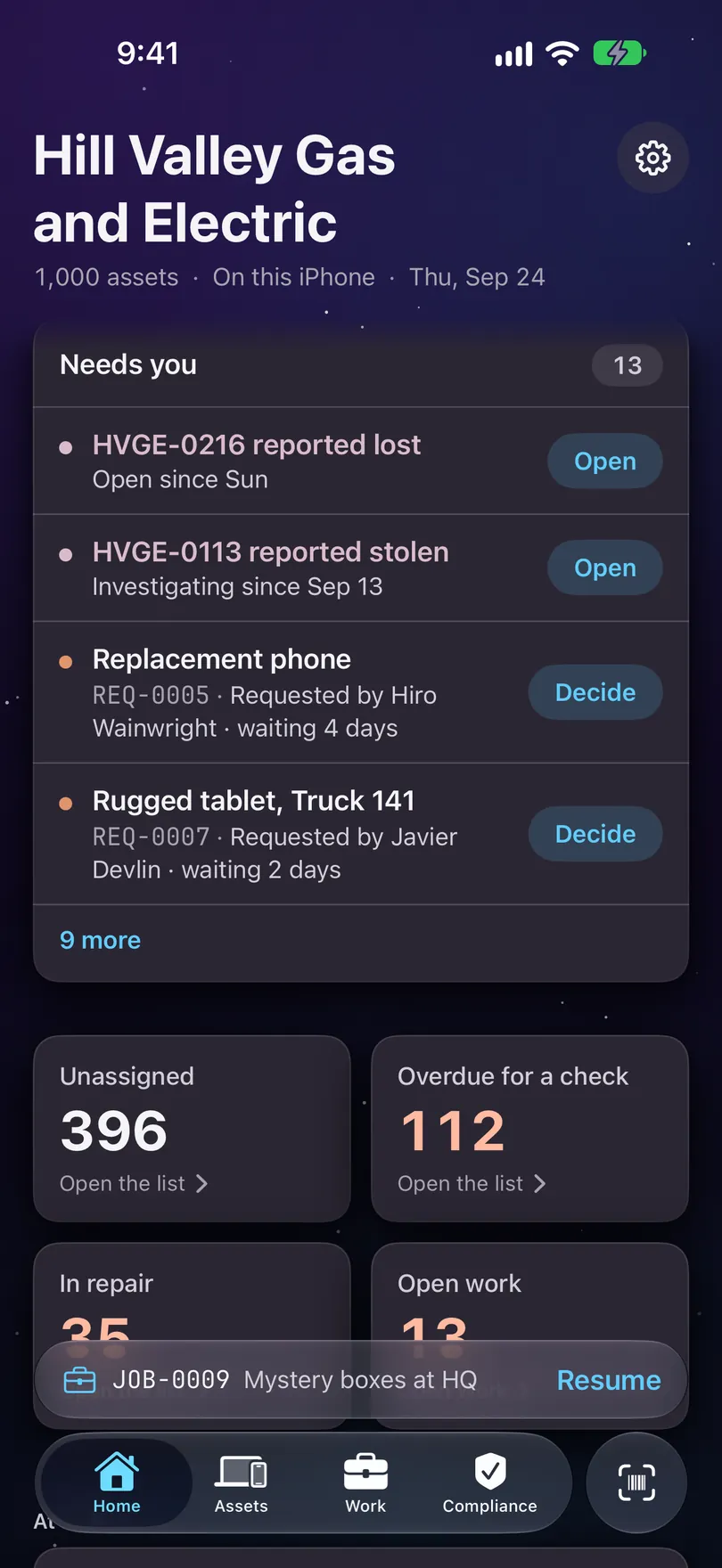
Home is the first screen on the iPhone. It doesn't list the fleet. It shows what needs you first, then four figures, then the fleet, compliance and what's ending, at a glance. Settings is the gear at the top.
- For
- The iPhone's opening screen: what needs you, four figures that each open a list, the fleet at a glance, your setup checklist, and the way into Settings.
- Will not
- It doesn't list the fleet, show your own assets, greet you by name, or animate the figures. Assets lists the fleet.
What you are looking at
The same layout every time you open it, so only the numbers move.
From the top: the masthead, with the gear for Settings beside it, then any notes about the app itself (sync trouble, work that couldn’t be sent, a scanned tag that matched nothing). Then Needs you, the things waiting on you, most urgent first. Under it, four figures, and then At a glance: the Assets card, the Compliance card and Ending soon. Once anything is recorded, all of them show up every time, even with nothing in them.
The masthead
Your organisation's name, then one quiet line: how many assets, where the register lives, whether that's current, and the day.
The big line is your organisation’s name. Until you’ve named it, it shows where the register lives instead. The line under it reads like 1,000 assets · On this iPhone · Thu, Sep 24. Paired to a Mac, the middle part is the Mac’s name. Signed in to Starkive Cloud, it’s Starkive Cloud. The day at the end is written the way your phone writes dates, and moves on at midnight.
Before the day, the line says whether the register is current: 3 waiting to send, syncing, signed in, synced with a time, connected, can’t connect, not signed in or offline. A phone holding its own register shows nothing there unless it’s syncing, and is never called offline, because there’s nothing for it to be offline from. A signed-in cloud phone reads signed in or synced for the same reason. A sync from today shows a time, and an older one shows its day too.
The gear beside the name opens Settings, with its own Done. Settings isn’t a tab any more.
Needs you
One list of what's waiting on you, in the order to do it, with one button on each row.
The card is headed Needs you, with a count beside it. Each row says what it is, has a line under it with the detail, and ends in one button: Open, Decide or Sweep. The whole row is the button, not just the word. The rows come in this order:
- Lost and stolen machines, newest first, like HVGE-0113 reported stolen with Investigating since Sep 13 under it. These are alarms, drawn in their own colour, and VoiceOver says “Alarm” first. Open opens the machine’s record.
- Requests waiting on a decision, the one that’s waited longest first, with its REQ- number, who asked and how long it’s been waiting. Decide opens the request on Work. A request that’s been approved and is waiting to be issued isn’t here, because nobody has to decide it. Work lists it.
- Devices waiting to connect: assets nobody has approved to connect or marked not approved. Decide opens the list of them.
- Your jobs, the ones claimed by you or assigned to you, soonest due first. Open opens the job on Work.
- Rooms due a sweep, as one row: rooms never swept, or not swept for a year. One room reads like Stockroom B never swept. Several read like 3 rooms due a sweep, naming the oldest. Sweep starts a sweep of that room, or asks which room when there are several.
- Flagged for audit, and new assets to finish: ones added in the last 14 days that are still short of a holder or a warranty date. Open opens the list, and each row in it opens the record.
Four rows show at most, but a lost or stolen machine never hides behind the rest: every alarm shows, however many there are. Under the rows, 9 more opens the card to show the others and Show fewer folds it back. When everything held back is a job or a request, it reads 2 more in Work instead and takes you to Work.
With nothing waiting, the card stays small and says Nothing needs you right now. If your jobs and requests couldn’t be read, it says Your jobs and requests could not be read just now. rather than claiming there’s nothing.
The word for a room is Sweep, never audit and never verify. A camera panned down an aisle shows a label was in a room, which isn’t the same as somebody checking the machine.
The four figures
Four numbers, two by two, each opening the list it counts.
- Unassigned: assets with nobody holding them. No warning colour, because kit in a stockroom is supposed to be on nobody.
- Overdue for a check: assets that are overdue for a physical check. The list says when each was last checked, or Never checked.
- In repair: assets in that state now.
- Open work: open jobs, and requests that haven’t been issued yet. It opens Work on its Open list.
Each figure says Open the list under the number, and Open work says Open Work. A figure at zero still shows, so the four never move, but you can’t tap it: an empty list would read like the app failing. Open work is the exception, because Work’s own empty list says what to do next.
At a glance
The fleet, compliance and what's coming to an end, in three cards.
Assets shows how many assets the register holds, a bar of where they are in their life, and a line under it like 736 active, 99 in storage, 14 on order or received, 35 in repair, 12 lost or stolen, 104 retired. In repair and lost or stolen carry their warning colours. Tap the card to open Assets.
The figure at the top right of the Assets card is the book value, the same figure Finance shows: what the assets still in service are worth after depreciation. Tap it to open Finance. If nothing has a value yet, it reads No book value yet instead of a zero, and still opens Finance.
Compliance shows a ring and a line like 3 of 16 reports ready, then the gaps, like 1,813 gaps · biggest first, or No gaps found. Until your scope is set it reads Say what your register is held to. While the phone is still working it out, it reads Checking the register. Tap it to open the Compliance tab.
Ending soon has four lines, each opening its list:
- Warranties in 14 days: warranties that end inside the next fortnight. The list gives each end date.
- Out of warranty: warranties that have already ended, with the date each one did.
- Leases in 90 days: leases that end inside the next three months.
- Contracts to renew: contracts past their renewal notice. Each one opens the contract.
Like the figures, a line at zero still shows but can’t be tapped.
Nothing from the old Home went away. Jobs and requests are rows in Needs you and the Open work figure. Rooms to sweep, flagged assets, devices waiting to connect and new arrivals to finish are rows in Needs you. The warranty and lease counts are under Ending soon, and compliance has its own card.
Getting set up
Until setup is finished, Home keeps a short checklist under Needs you, and every row opens the exact job.
The card is headed Getting set up. It says 3 things left. None of them take long. (or One thing left.), shows a percentage and a bar, and has Hide if you’d rather not see it. Once hidden, it stays hidden. The first rows, Installed and Set up your register, are already ticked. Up to two jobs follow, picked from:
- Name your organisation: it heads your register and prints on every report it produces. Opens the organisation’s name. On a cloud register the name comes from Starkive Cloud with the next sync, so there’s nothing to type here.
- Say who you are: every change you record is signed with this name. Opens Your name.
- Record your first asset: scan a tag, photograph a serial, or type it in. Opens the add chooser.
- Lock this phone’s register: Face ID (or whatever your phone uses) before the asset list opens. Opens Security and reminders. With no passcode on the phone it says to set one first.
- Sign in for cloud features: optional, adds other devices, a cloud copy and API keys. If you’ve bought a cloud plan and the account step didn’t finish, it reads Finish setting up your account instead, and comes first.
- Turn on encryption: for a cloud organisation that hasn’t set it up yet. Opens the encryption setup.
- Scope your compliance programme: which regulations your devices fall under, and which evidence the register collects. Opens Compliance scope.
Tap a row and that screen opens right there on Home, not somewhere in Settings. A finished row gets a tick and keeps its place while there’s room, so the list doesn’t jump around under your thumb. When everything is done, the card goes away on its own.
The percentage counts every job, including any the card doesn’t have room to list, so it never reads 100 while something is still open. The card doesn’t show in the demo register.
Notes at the top
A few notes show up only when something needs saying.
- Sync incomplete when the register reports trouble, and Documents incomplete when some documents can’t be opened on this device yet, unless the setup card is already covering it.
- Couldn’t re-read the register when the phone couldn’t refresh the figures. The numbers below are from the last good read, and the note stays until that’s fixed.
- Not sent when this phone is holding work it couldn’t deliver: “One change was refused and will not be retried on its own.”, or the same with a count. Try again resends it.
- Made for a different Mac and Not on the Mac yet when changes on this phone are being held back from a Mac until you say what to do with them.
- Not on this iPhone when a scanned tag matched nothing. It offers Ask again (sync, then look once more) when there’s a connection, Add it, and Dismiss.
When nothing is recorded
One card, with the setup checklist above it. Needs you, the figures and At a glance don't show.
Start here has Nothing recorded yet, then Scan a machine to open the camera and Add by hand to type what you know, no camera needed.
The line under Nothing recorded yet depends on where the register lives. On a cloud register it says a register already in Starkive Cloud will show up at the next sync. On a phone holding its own register it says your assets live on this iPhone. On a paired phone it says nothing has arrived from the Mac yet.
If the phone couldn’t read the register at all, you get Couldn’t read the register instead, with Nothing has been lost. Close the app and open it again. A failed read isn’t shown as an empty register.
What Home does not do
Leaving these out is on purpose.
- It doesn’t list the fleet. That’s Assets.
- It doesn’t hold the work itself. Jobs and requests live on Work; Home shows the ones waiting on you and takes you there.
- It doesn’t show “your assets”. Assets have holders, and whoever runs the register is an admin, not a holder.
- It doesn’t greet you by name. Your name is for signing work.
- It doesn’t animate the figures. A number counting up implies the numbers in between were once true.