DocumentationiPhone
The demo, step by step
The tour the app offers on first run: a made-up company with 1,000 assets, six things to try, each a tap or two. Every word below that the app says is quoted as it says it, and the pictures are the app running the demo.
- For
- Walks the demo from the offer on the first screen to the card that says you have tried all six. Nothing in it needs a plan, a card or an account.
- Will not
- Write anything of yours into it, or leave anything of it behind. The demo is one made-up company on this iPhone, it is deleted when you leave it, and the Mac's tour has its own moments that this page does not cover.
- Writes
- Only inside the demo: your ticks on the six things, kept for the demo's three days even if you close the app and come back. Nothing in the demo reaches your own register.
- Elsewhere
- The door to the demo, and what the three days are counted from, is described with the rest of setup.
What the demo is
Hill Valley Gas and Electric: a made-up company with 1,000 assets, its people, its contracts and its paperwork.
It is a register you can walk around in before you have one of your own. Nothing of yours is written into it, and it is deleted when you leave it. It is free for three days from the moment you first open it — not from install — and First run on the phone covers the door to it, the Demo pill that counts the days, and what happens when the three days are up.
This page is the tour itself, in the order you meet it: the offer, the welcome card, six things to try, and the card that ends it.
Opening the demo
Offered before setup, on the first screen, under the two choices.
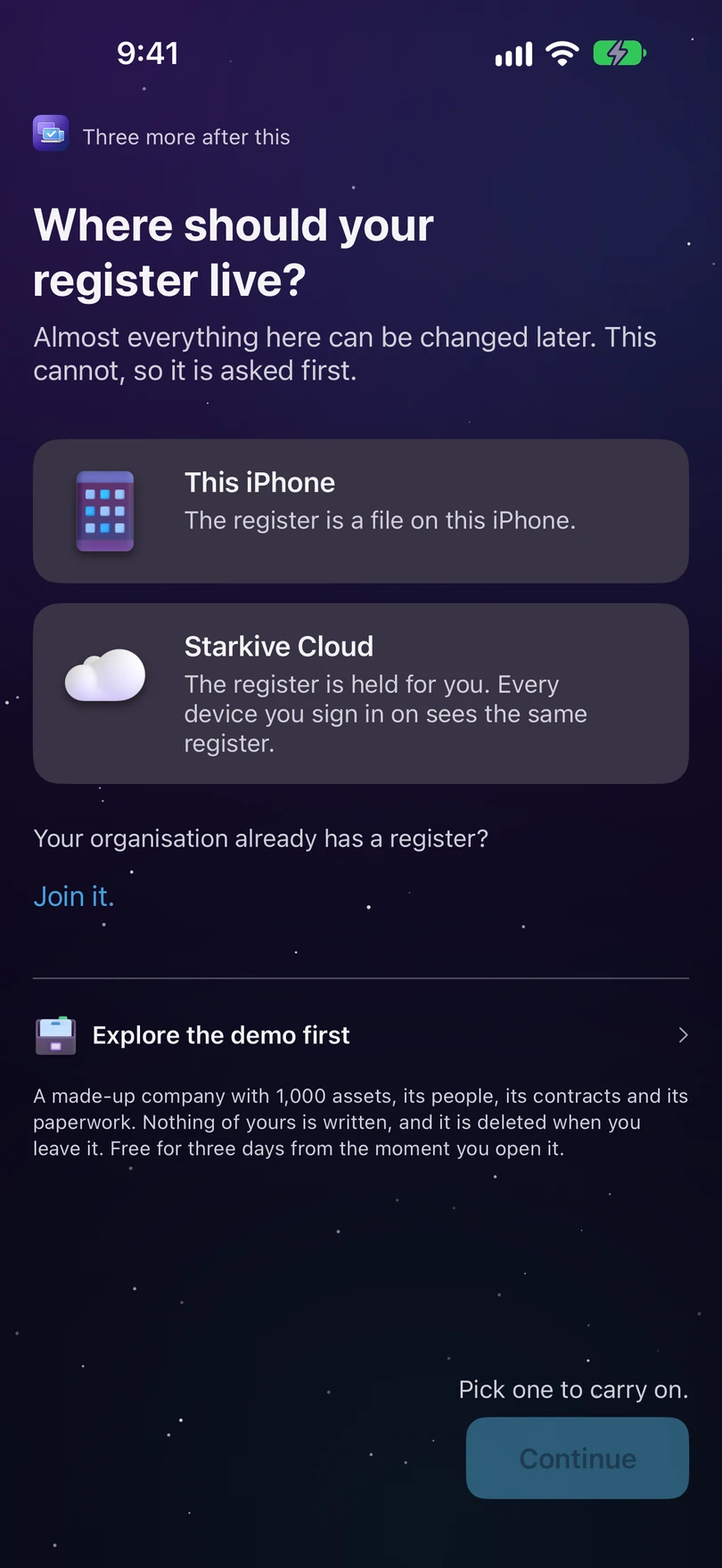
On first run, before you set up a register of your own, Manifest offers Explore the demo first: A made-up company with 1,000 assets, its people, its contracts and its paperwork. Nothing of yours is written, and it is deleted when you leave it. Free for three days from the moment you open it.
Tap Open the demo. Building takes a moment — the app says Building the demo… while it writes the register.
The welcome card
When the register is ready, the demo introduces itself.
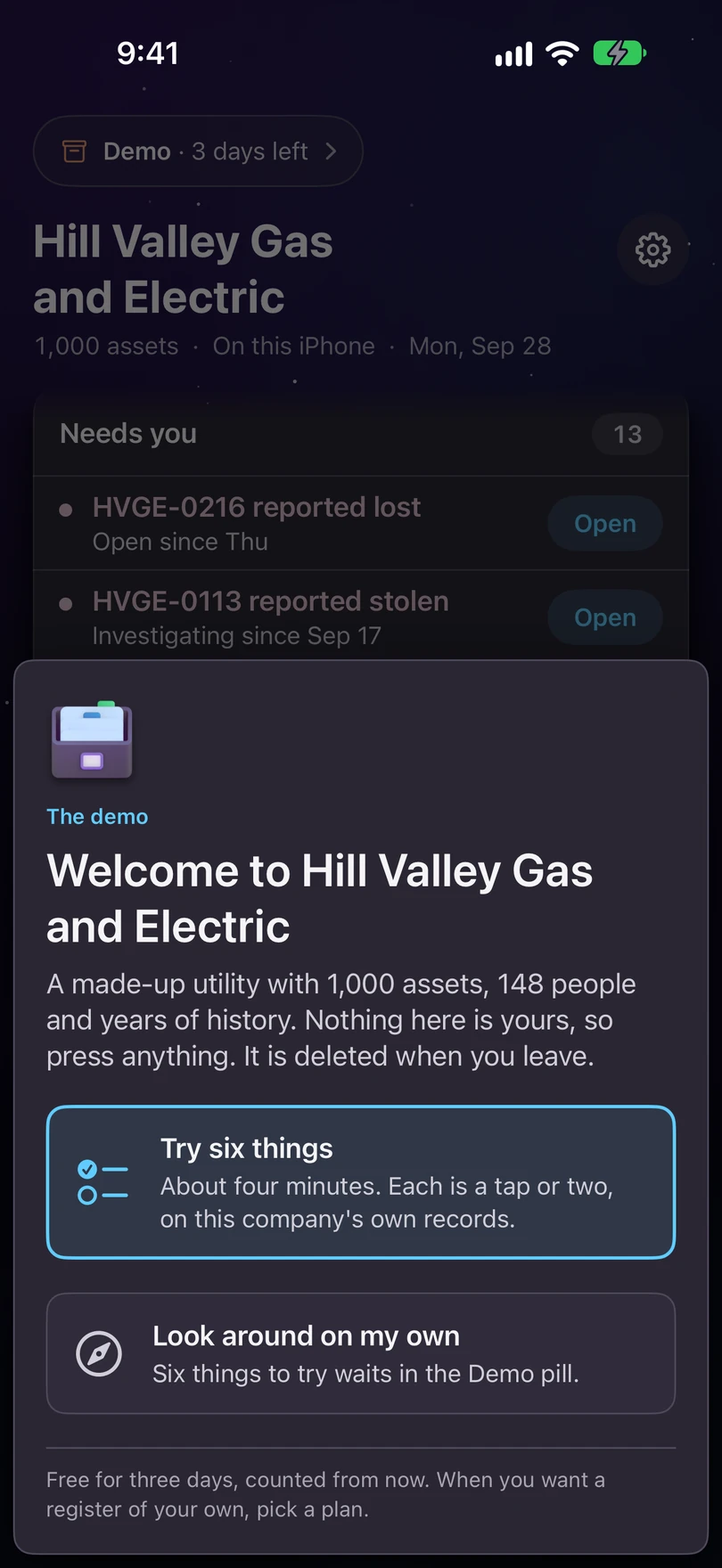
It says Welcome to Hill Valley Gas and Electric, and gives you two ways in:
- Try six things — About four minutes. Each is a tap or two, on this company’s own records.
- Look around on my own — Six things to try waits in the Demo pill.
The Demo pill
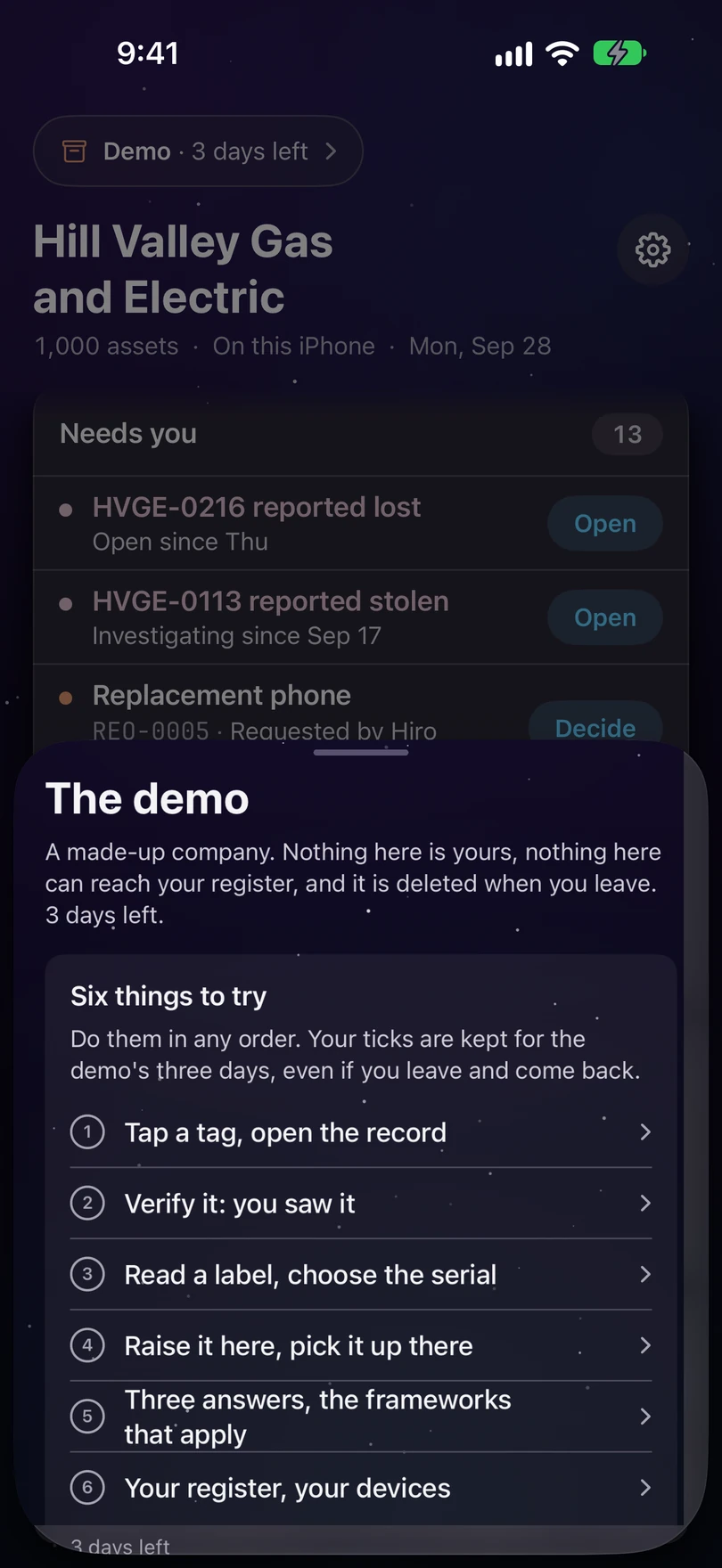
Demo · 3 days left, at the top of every tab. It keeps the tour in reach wherever you wander.
Tap it and the demo’s sheet opens with Six things to try, What am I looking at?, See plans and Leave the demo. Your ticks are kept for the demo’s three days, even if you close the app and come back.
Six things to try
Do them in any order. Each is a tap or two, on records that are already there.
Whichever way you start — the welcome card or the pill — the list is the same six. This is what each one shows.
Tap a tag, open the record
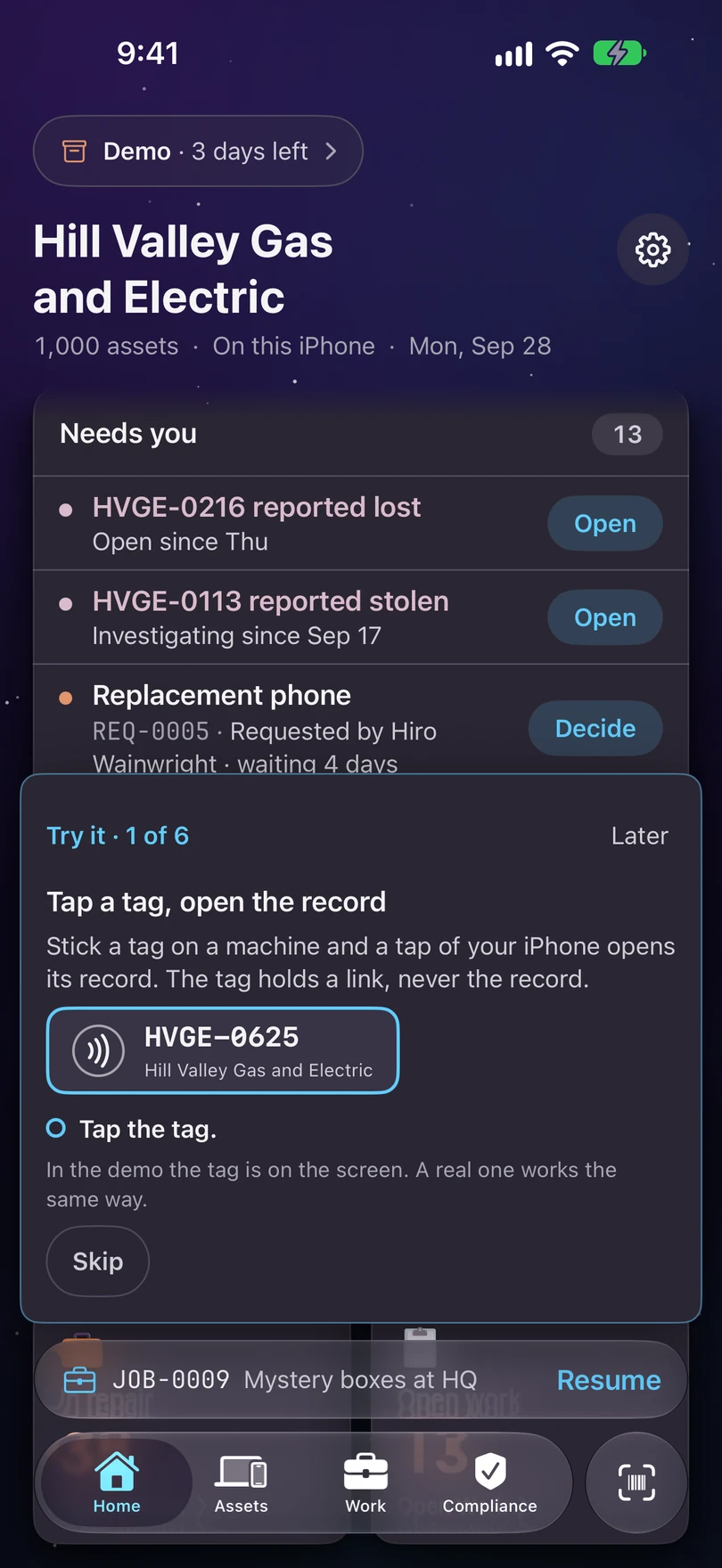
Stick a tag on a machine and a tap of your iPhone opens its record. The tag holds a link, never the record. Tap the tag. In the demo the tag is on the screen; a real one works the same way. When you have tapped it, the card tells you which machine you opened, by tag, model and holder.
The tag holds a link, never the record. Verify it: you saw it
Verify is written by doing it. Your name and the time go into the history, and nobody can type them in. Tap Verify. The verification goes to the top of the machine’s history, under your name, just now — and the app cannot edit it afterwards.
Your name and the time, written by doing the thing. Read a label, choose the serial
The camera lists every code it read. You tap the serial. Manifest never guesses. Tap Read this label. This one is a photo of a made-up label; on a real machine you point the camera at it. Every code the camera read is listed, and nothing is chosen for you. See Capturing a serial for the same rule at length.
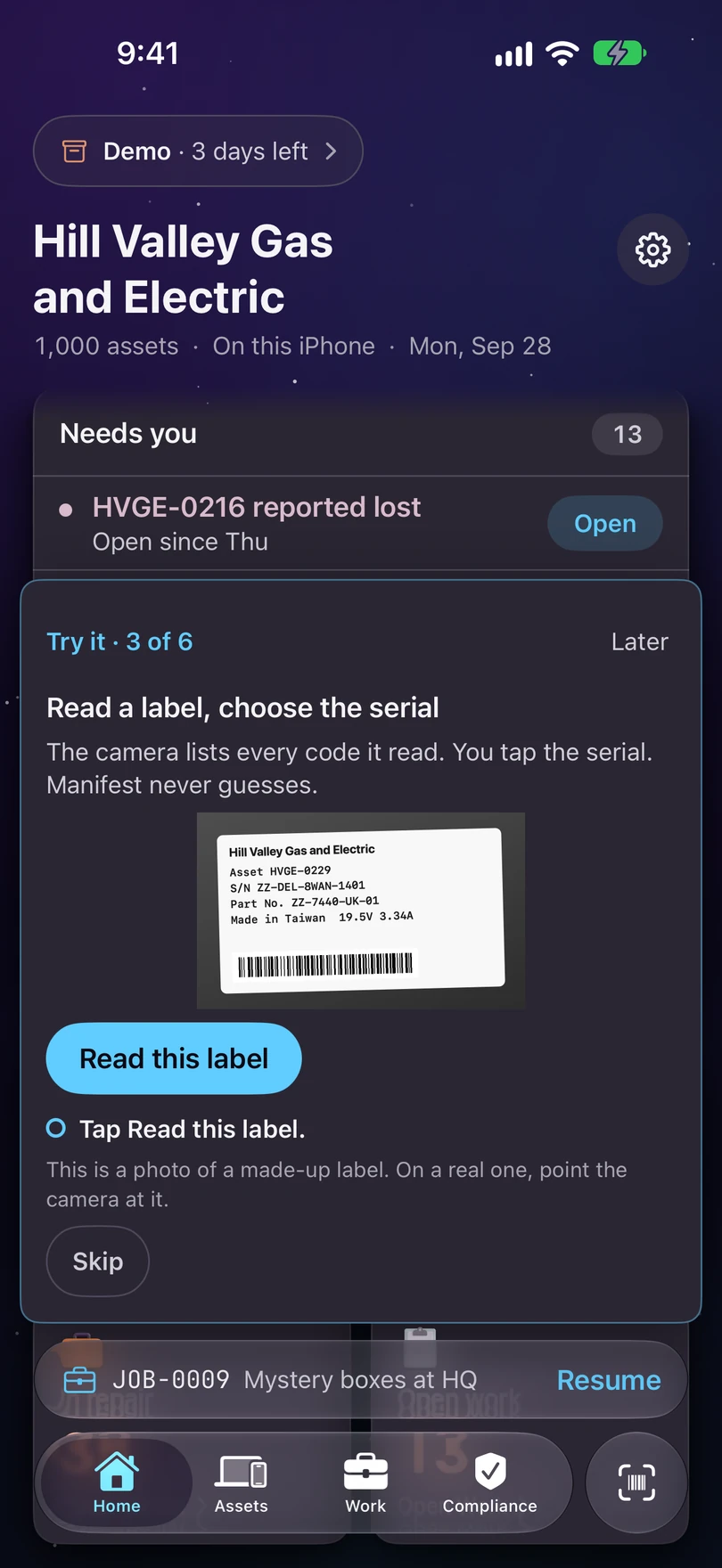
Every code the camera read, listed. You do the choosing. Raise it here, pick it up there
Every job gets a number like JOB-0011, and moves between your iPhone and your Mac when they’re paired or both on Starkive Cloud. Tap + and raise a job. The job lands in Work under its own number. The demo stays on this iPhone, so this one will not reach a Mac — but on a paired device it would be in Work there too.
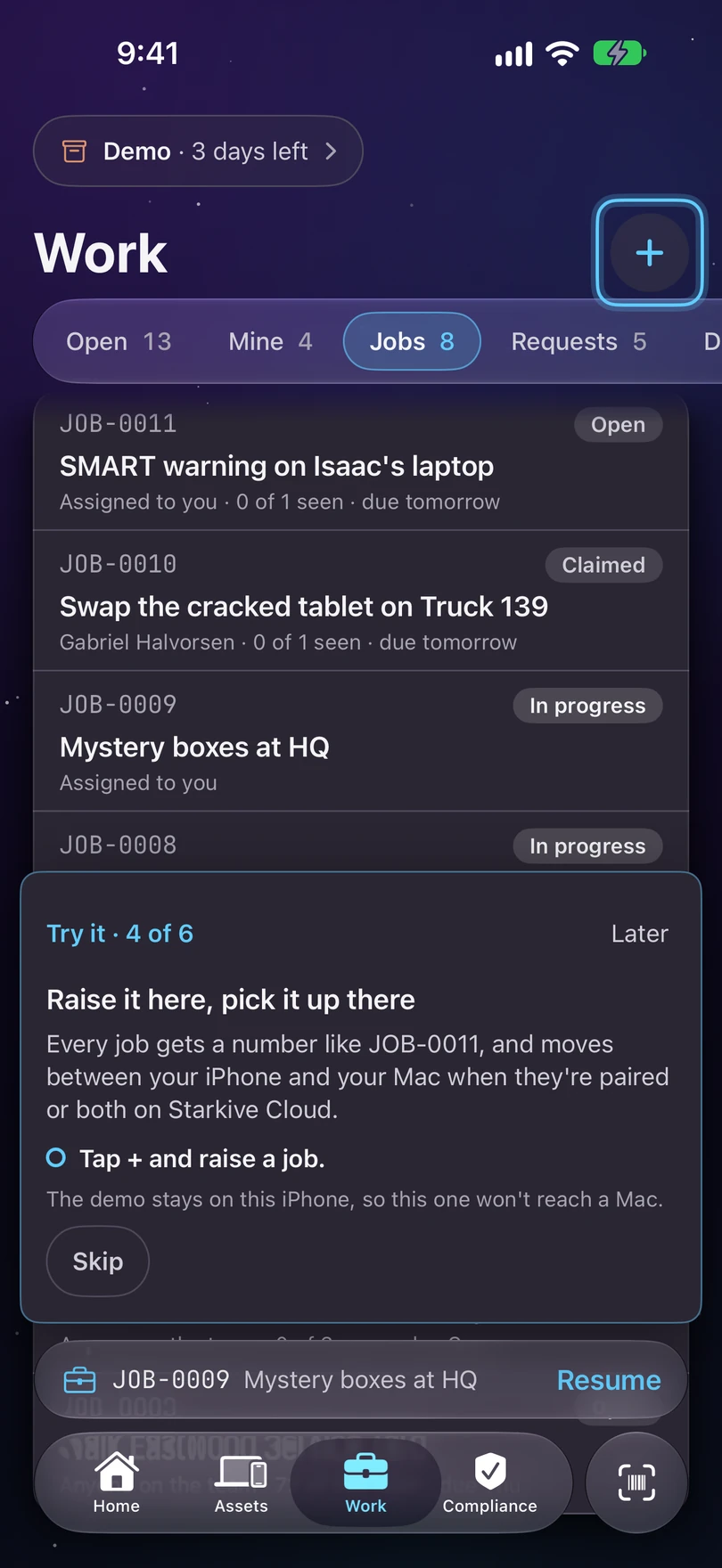
A job and its number, raised where the machine is. Three answers, the frameworks that apply
Say what kind of organisation you are and Manifest works out which of its 12 frameworks apply, and what each asks your register to hold. Answer the three questions. They are What do you do?, Where are you? and Do you hold any of these? Certifications you hold add more — Hill Valley’s are ISO 27001 and SOC 2. Nothing here is saved. See Compliance for the framework list itself.
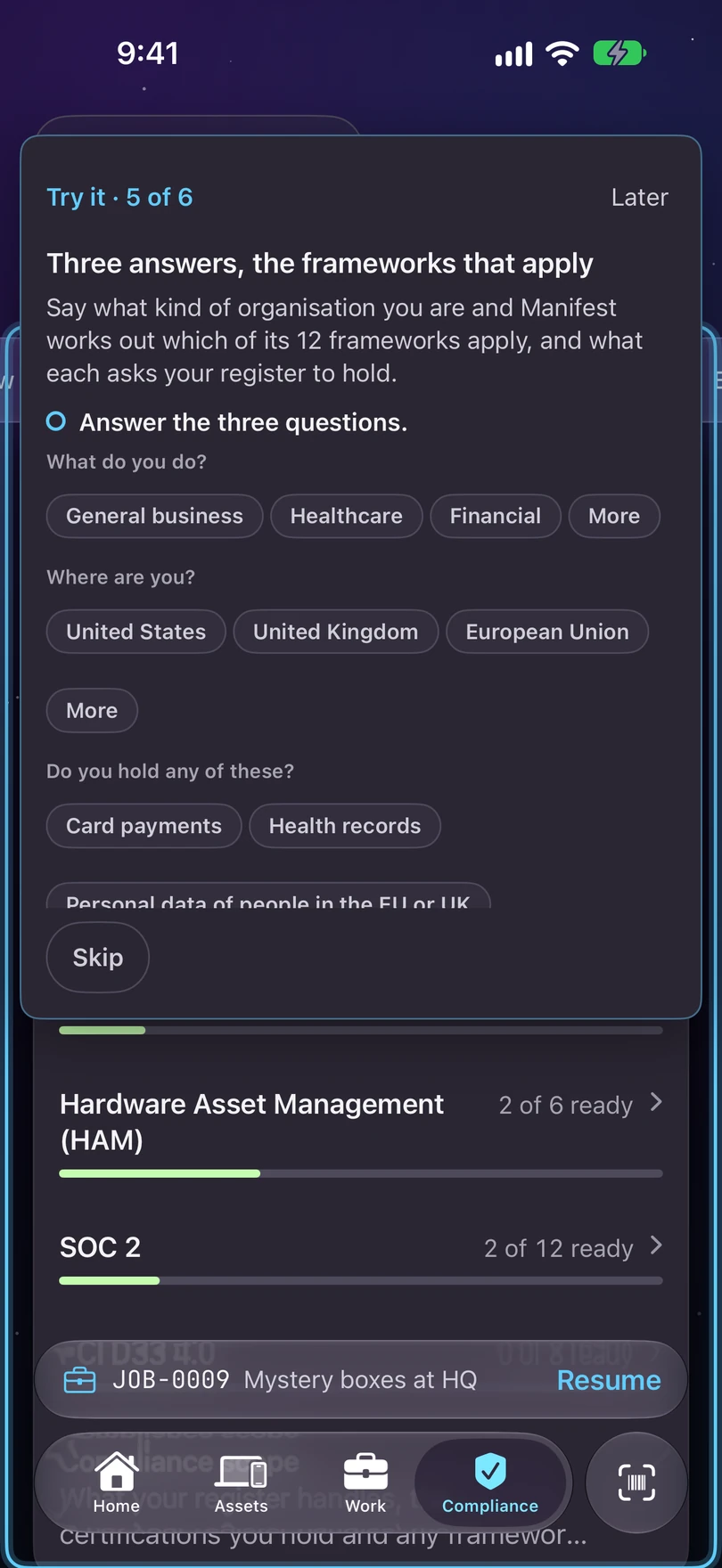
Three questions, asked once, answered here with nothing saved. Your register, your devices
This demo is a file on this iPhone. There’s no account, and Manifest sends no telemetry or diagnostics. Tap the lock to see what Starkive Cloud can’t read. The things that do leave the device are sealed before they go, with a key the app’s makers never receive. See Where the register lives.
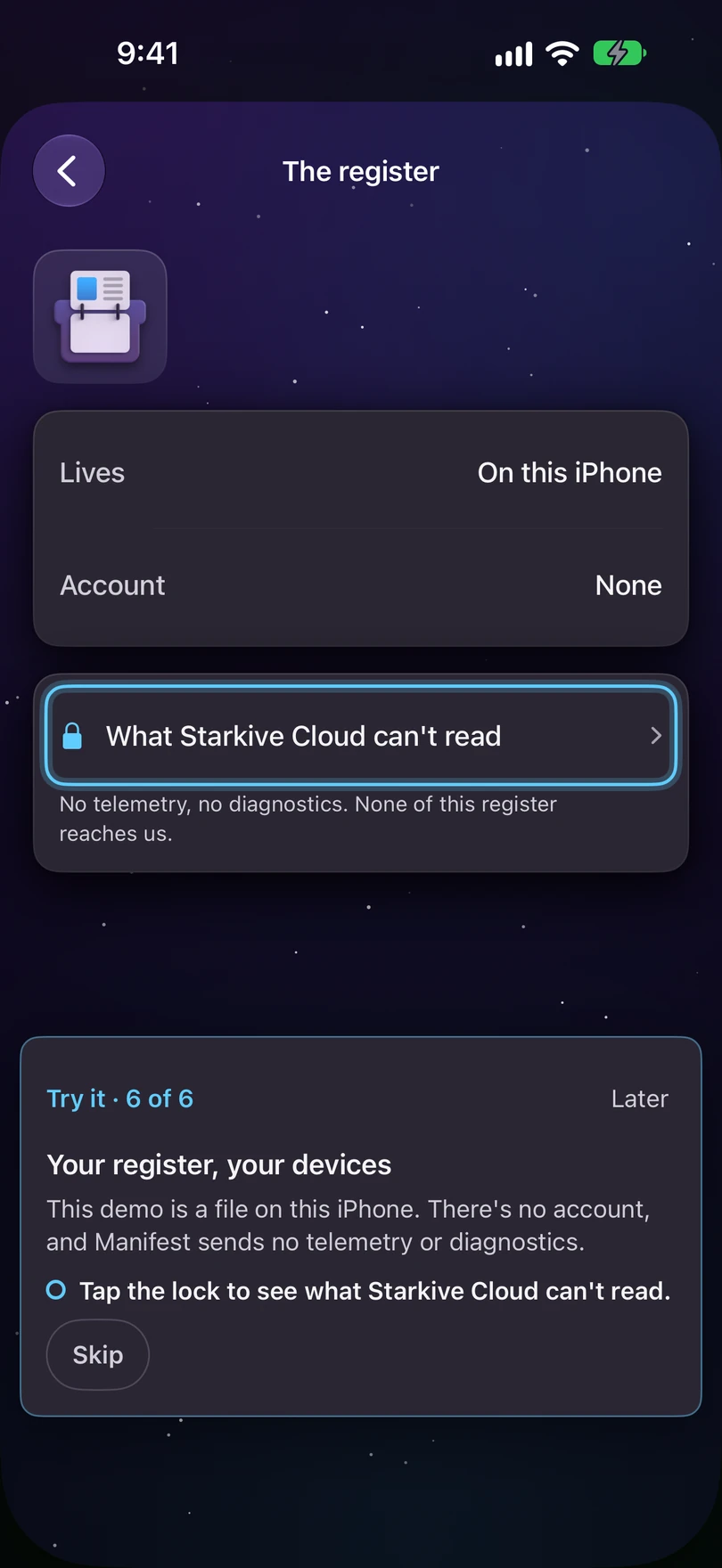
The lock that shows what leaves the device — and what is sealed first.
“What am I looking at?”
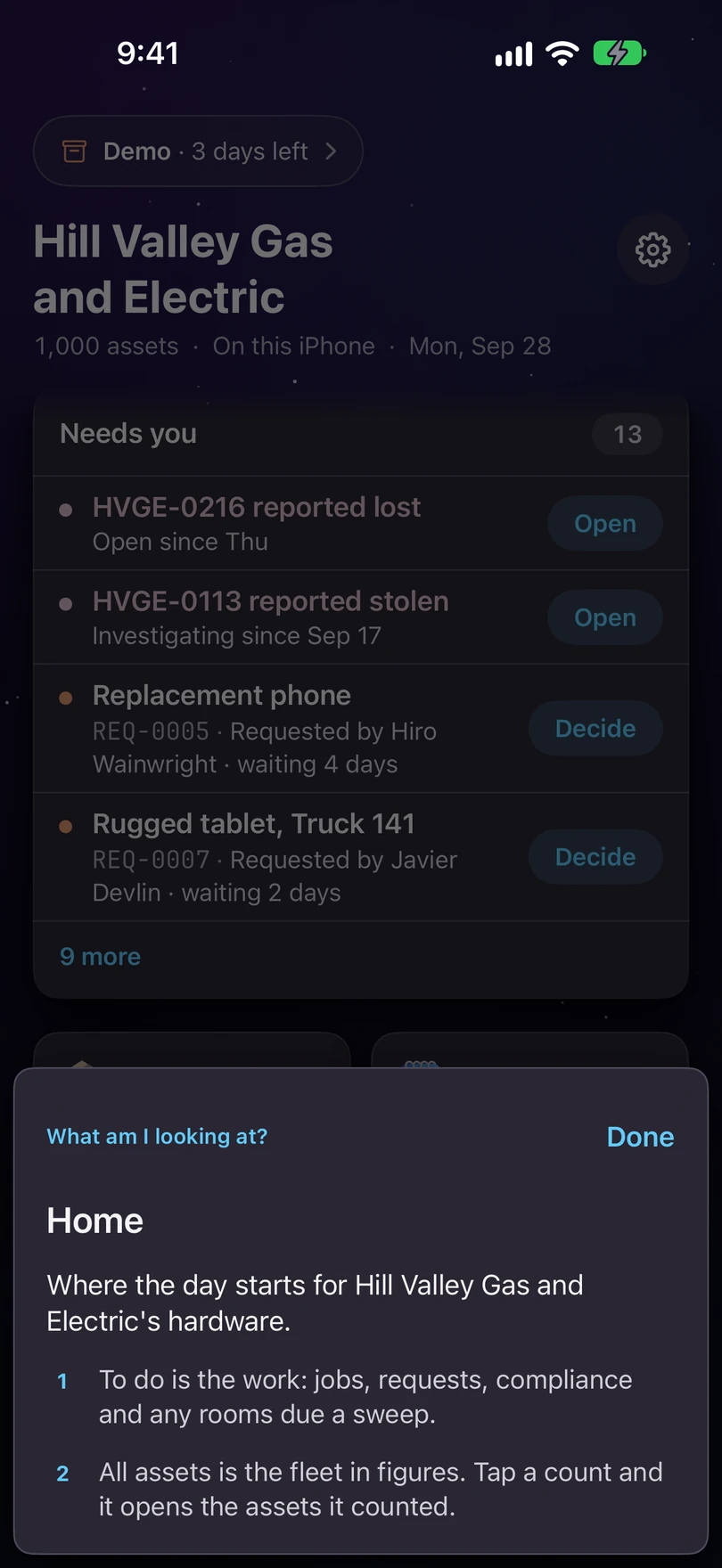
Every screen in the demo can be explained, on the screen.
From the pill’s sheet, choose What am I looking at? and the card on screen tells you what that screen is for. It works anywhere in the demo, not just on the six things.
When you have tried all six
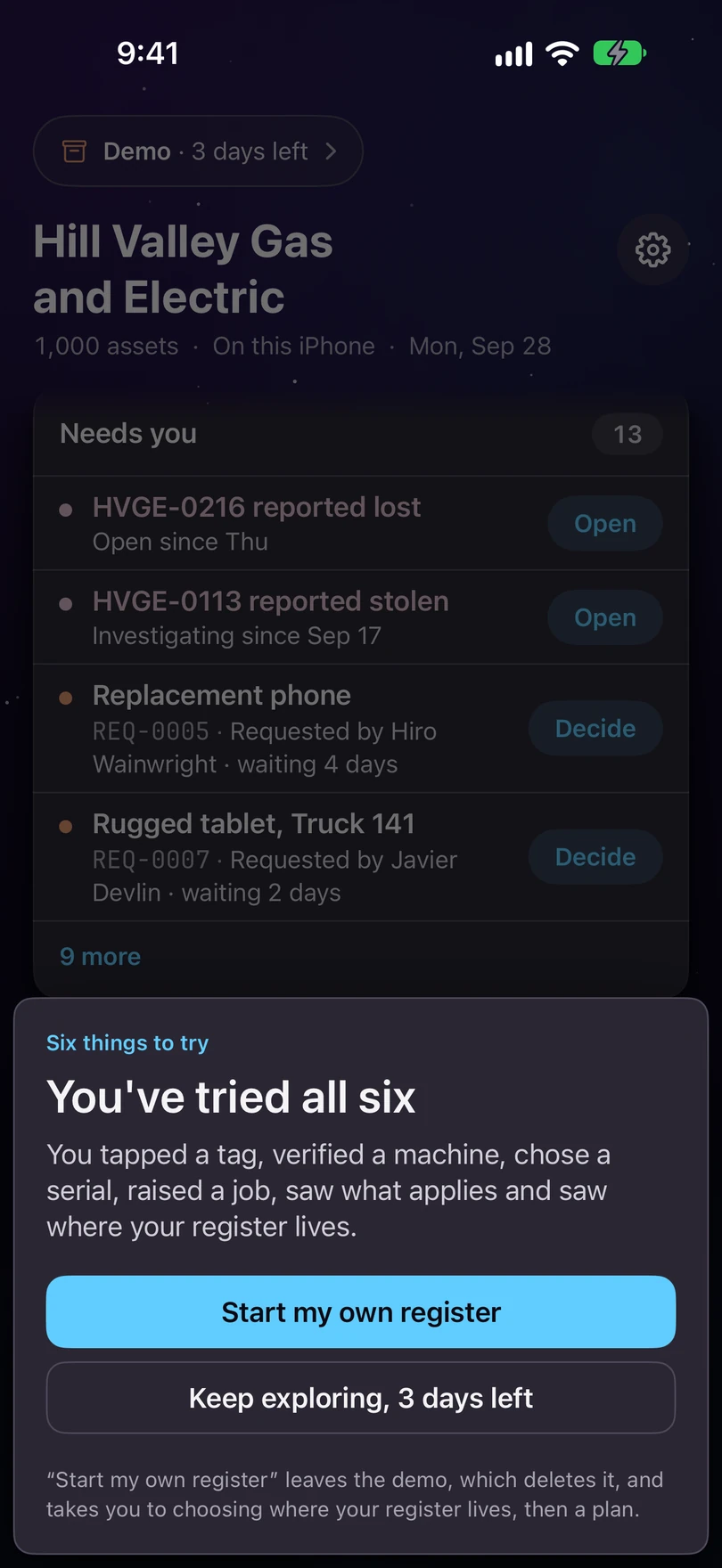
After the sixth tick, the demo wraps up.
It says You’ve tried all six. From there you can Start my own register — everything in the demo is deleted when you leave it, and nothing of it reaches yours — or Keep exploring for the days that are left.
Leaving early
You don't have to try all six, and you don't have to finish the days.
Leave the demo is in the pill’s sheet at any time. Your ticks and the demo register are discarded with it, and you are back where you were before you opened it. Opening the demo again carries on the same three days rather than starting new ones.
The Mac keeps its own banner for the demo, and its tour has its own set of moments — asking the assistant in plain English, showing a record’s tag. This page covers the iPhone.