DocumentationiPhone
First run on the phone
Setup on the iPhone is four short screens: where the register lives, your plan, what goes on your labels, and how you'd like to start. If you'd rather look round first, the demo opens from the very first screen.
- For
- Sets up the iPhone app: where the register lives, a plan, your name and labels, and a way to record your first machine. Or opens the free demo instead.
- Will not
- Your own register needs a plan. There's no way past the plan screen without one. No spreadsheet import on the phone, and no compliance questions in the middle of setup.
- Writes
- Nothing of yours is written before you've chosen a plan. Your answers are saved when you pick how to add your first asset, or tap Finish later.
- With a Mac
- Joining a register a Mac on your Wi-Fi already holds is a route of its own, and it only shows up when that Mac is there.
What setup is for
The phone isn't an add-on to a Mac. It can hold a register on its own, so setup works for somebody whose first device is their iPhone.
If you download the phone app first, as the first device in your company, you can do the whole setup from it: choose where the register lives, pick a plan, and name the organisation. Joining a team that already uses Starkive starts from the same first screen.
Have a look first: the demo
There's no free trial. There's a free demo, and it costs you no screens to reach.
Under the two choices on the first screen is Explore the demo first. It opens a made-up company, Hill Valley Gas and Electric, with 1,000 assets, plus its people, contracts, jobs and paperwork, all filled in. Nothing of yours goes in it, and there’s no card and no account.
It’s free for three days from the moment you first open it, not from install. A Demo pill at the top of every tab shows how many days are left. Tap it for the guided tour, What am I looking at?, See plans and Leave the demo. Leaving takes you back to where you were, and the demo is deleted when you leave. Opening it again carries on the same three days rather than starting new ones. Settings (the gear at the top of Home) keeps a way back in under The demo.
When the three days are up the door reads The demo has closed, with See plans. Your own register works the same way, with your own kit in it, and it needs a plan.
The tour itself — the welcome card, the six things it suggests you try, and the card that ends it — is walked through screen by screen in The demo, step by step.
Where should your register live?
Screen one. It's the one answer you can't change later without moving your data, so it's asked first.
The note under the question says Almost everything here can be changed later. This cannot, so it is asked first. Two choices, and nothing is picked for you:
- This iPhone: the register is a file on this iPhone. If a Mac running Starkive is on your Wi-Fi, the card adds that your own Mac reaches it over your own network.
- Starkive Cloud: the register is held for you, and every device you sign in on sees the same register.
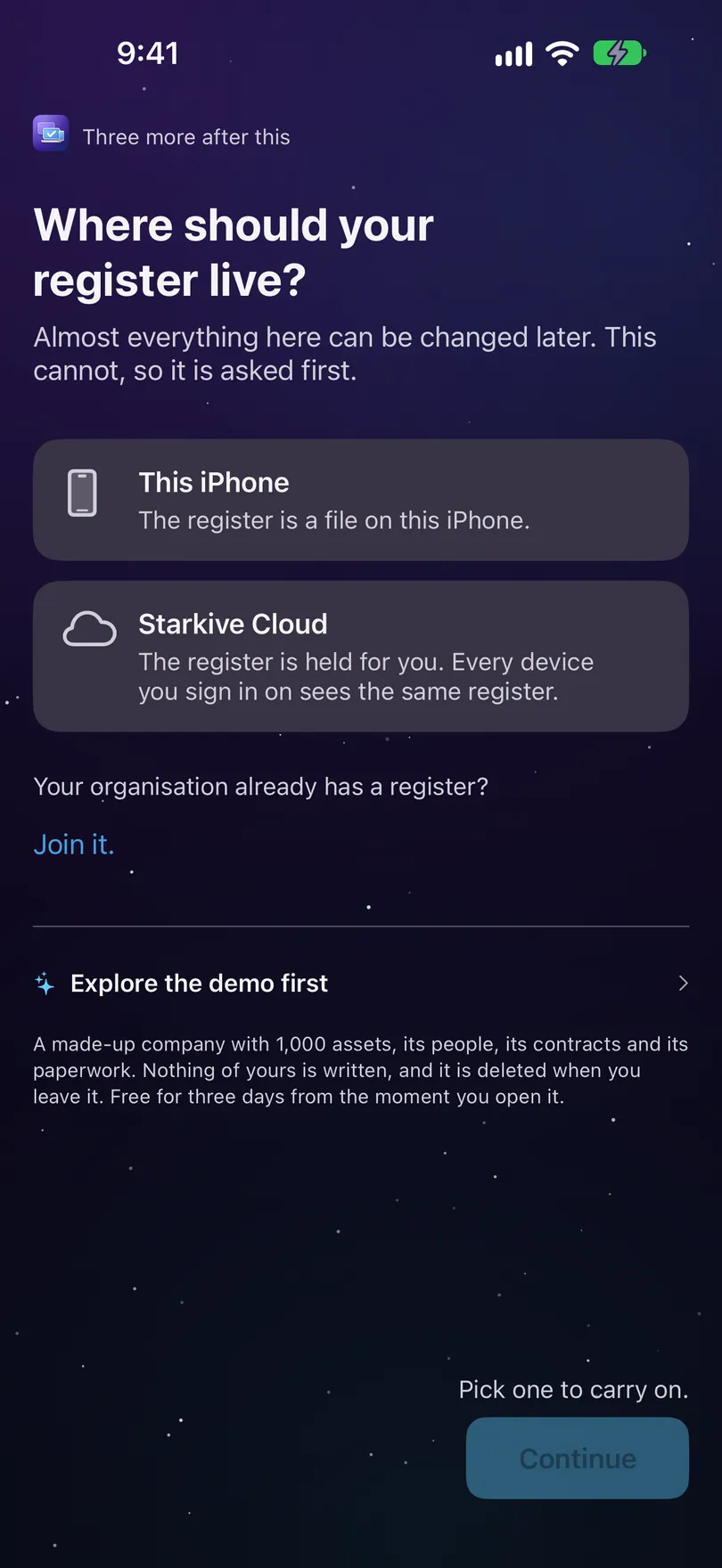
There are no prices on this screen. Until you pick one, the footer says Pick one to carry on. Once you have, a line tells you what comes next. See Where the register lives for more on the two.
Joining your team? Under the two choices is Your organisation already has a register? with Join it. That swaps the two choices, in place, for the ways into a register somebody else already runs: It is already in Starkive Cloud, and There is a Mac already if a Mac running Starkive is on the same Wi-Fi. With no Mac around you won’t see the second one. Back takes you to the two choices again.
Your plan
Screen two. You meet the cost on the way in, not later.
On this iPhone. The screen asks Roughly how many assets do you look after? and says what counts: every laptop, desktop, monitor, phone, tablet, printer, piece of network gear, server and anything else you track is an asset. An estimate is fine. Type a number and the plan that covers it is picked for you, marked Covers your and the number. Tap any other plan to choose that one instead. No plan is picked before you type or tap.
Every plan includes everything. They differ only in how many assets you keep and how many devices can use it at once. Pick one and the screen shows what it gets you, with the price straight from the App Store in your own currency. Going over a plan never stops you recording an asset.
At the bottom are Renews monthly until you cancel., Terms of Use, Privacy Policy and Restore purchases, all before the button. The button names what it does, Subscribe for the plan’s price a month, and reads Choose a plan to continue until you have. Under it, Not ready? Explore the demo, free for three days opens the demo instead. There’s no way into your own register without a plan.
Starting in the cloud. This screen is three short steps instead: Your cloud plan, then Create your account, then Name your organisation, with its asset tag prefix.
Joining in the cloud. The title is Sign in to Starkive Cloud: sign in with the account an admin invited you with. If you don’t have one yet, the No account yet? note explains how to get one. Joining somebody else’s register doesn’t need a plan of your own.
What goes on your labels?
Screen three. Two things about the register, and your own name. Nothing here stops you carrying on.
The note says Neither of these stops you carrying on. One of them cannot be changed afterwards, which is why it is asked now rather than assumed.
- What is this organisation called?, marked can be added later. It goes at the head of your reports and on printed labels. Left blank, the register is named after where it lives until you name it.
- Asset tag prefix, marked cannot be changed later. Two to six letters or digits, and it starts every tag this register ever mints. A label preview redraws as you type, barcode and all. Left blank, your tags start with STRK, which is ours rather than yours, and the screen says so.
- Your name, marked can be added later. Every record you make carries it into the audit trail. The note under it says A person, not a department. Changing it later doesn’t rewrite work already signed. A small example entry fills in your name as you type.
The prefix is only asked when the register lives on this iPhone. A cloud organisation sets its prefix when it’s created. If you’re joining a team, this screen is just What’s your name?, because somebody already answered the rest.
How would you like to start?
Screen four. Setup ends on work, not a settings screen.
Once you’ve named the organisation, the heading uses the name. The note says Whichever you pick, the others are still there afterwards. Nothing here is a fork in the road. On a phone joining a team it says your register is syncing down and you can still record something right now. Three cards. Tapping one finishes setup, and the next screen takes you into that way of adding:
- Scan an asset tag, marked Fastest: point the camera at a label or QR code.
- Photograph the serial: read a printed serial off the machine and confirm it before it’s written down.
- Type it in: no label, no barcode, a dead camera. A machine still has to be recordable.
Finish later at the bottom wraps up setup without adding anything. The note under the cards says Appearance and the lock are in Settings whenever you want them. Settings is the gear at the top of Home.
Where you are in setup
One quiet line at the top, not a progress bar.
Across the top is one line saying how much is left, like Two more after this. On the last screen it says nothing. Back and Continue sit at the bottom, and if something is missing the footer says what, rather than the button going quiet.
Your register is ready.
Once your answers are saved, setup shows you what it made.
A seal draws on. Under Your register is ready. is a one-line summary, like Acme Ltd · tags from ACME-0001 · on this iPhone, and a short list of what was set up.
Two ways out: Add your first asset, or Take me to the register. If you started the organisation, Set your compliance scope is there too. It asks which regulations your devices fall under. It’s optional, and it’s also on Home’s Getting set up card for later.
Running setup again
Settings (the gear on Home) → The register → Run setup again. It re-asks, it doesn't reset.
It opens full screen over Settings, with Close to back out. Your answers come back as you left them. If you’re already on a plan, the plan screen says Your plan is active and that running setup again doesn’t change it. The last step is Record your next asset, with Save and finish at the bottom.
Deleting the app doesn’t delete its keychain items. A fresh install clears what this app left behind before it reads any credential. See Security.